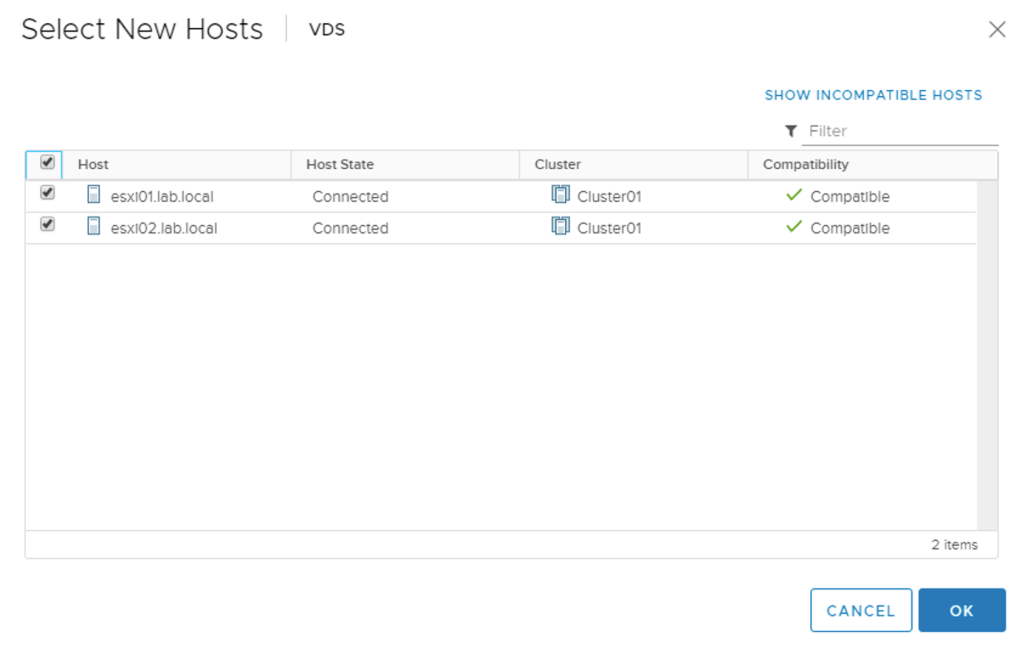
• With the release of vSphere 7 comes the vSphere Distributed Switch 7.0. This latest version comes with support for NSX-T Distributed Port Groups. Now, for the first time ever it is possible to use a single vSphere Distributed Switch for both NSX-T 3.0 and vSphere 7 networking!

    First and foremost, this new integration enables a much simpler and less disruptive NSX-T installation in vSphere environments. Previously, installing NSX-T required setting up a pNIC consuming N-VDS. Not seldom ESXi hosts found themselves handing over all of their networking, including vSphere system networking, to NSX-T. With the introduction of the VDS 7.0 this is a thing of the past.

    vSphere admins will appreciate the additional control, VDS 7.0 being a 100% vCenter construct, and for pure micro-segmentation projects in a VLAN-only vSphere environment using this new integration will be a no-brainer.

    Another “problem” that the VDS 7.0 solves, is that the NSX-T segments it backs are presented as ordinary distributed port groups. This should eliminate any issues surrounding NSX-T segments not being discoverable by third party applications. Yes, opaque networks have been around since 2011, but fact is that not all third party applications have picked up on these.

    One inevitable consequence of tying the two platforms together on a VDS is the new dependency. vCenter is required for running NSX-T on ESXi. It’s not a huge thing, but something to keep in mind when architecting a solution.

    This article wouldn’t be complete without some hands-on. I’m going to have a look at what’s involved in configuring vSphere and NSX-T so that a single VDS 7.0 is used for both vSphere 7 and NSX-T 3.0 networking. I’ll configure this in a greenfield scenario and a brownfield scenario.

    Let’s get started!

    Greenfield scenario

    We’ve just deployed vSphere 7 and NSX-T 3.0. ESXi hosts have not been configured as transport nodes yet. On a high level there are just two steps necessary to set up the integration:

    1. Install and configure VDS 7.0
    2. Prepare NSX-T

    Let’s have a closer look at each of these steps.

    Step 1 – Install and configure VDS 7.0

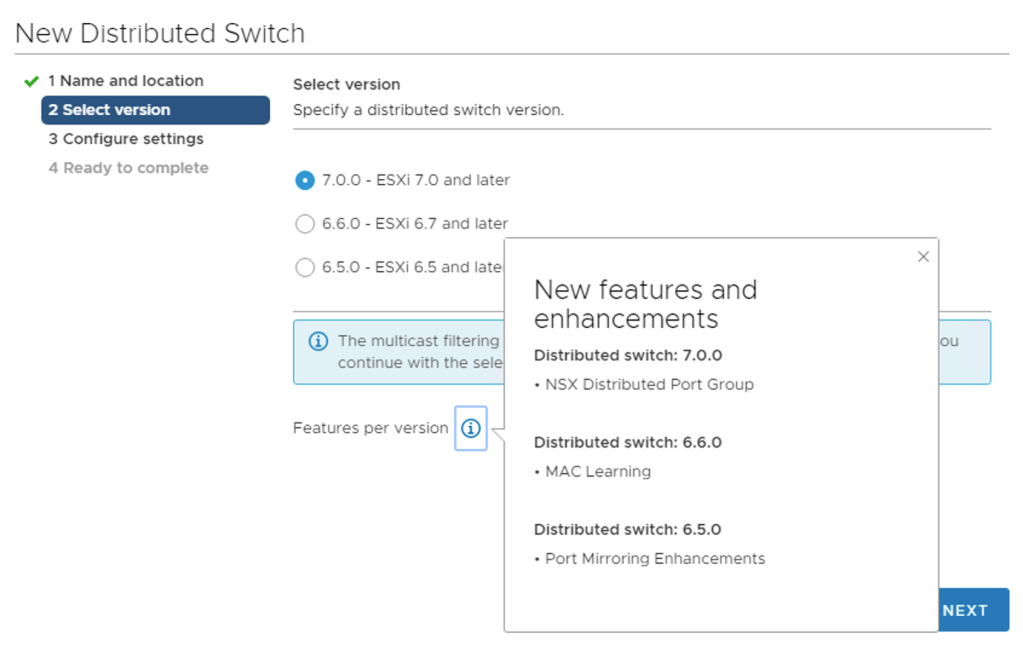
    Installing VDS 7.0 sounds like an extensive process. In reality this is simply you creating a new vSphere Distributed Switch and making sure version 7.0.0 (default) is selected:

    As you can see “NSX Distributed Port Group” is listed as the main new feature for distributed switch 7.0.

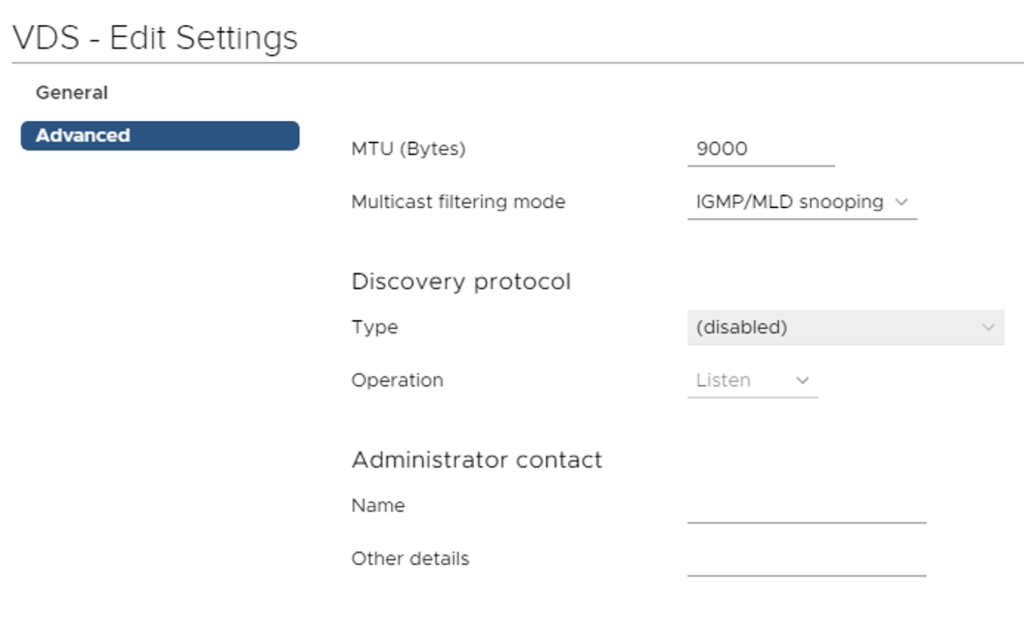
    This VDS will potentially have to deal with Geneve encapsulated packets (NSX-T overlay networking) so we are required to increase the MTU to at least 1600. I’m going for 9000 right away:

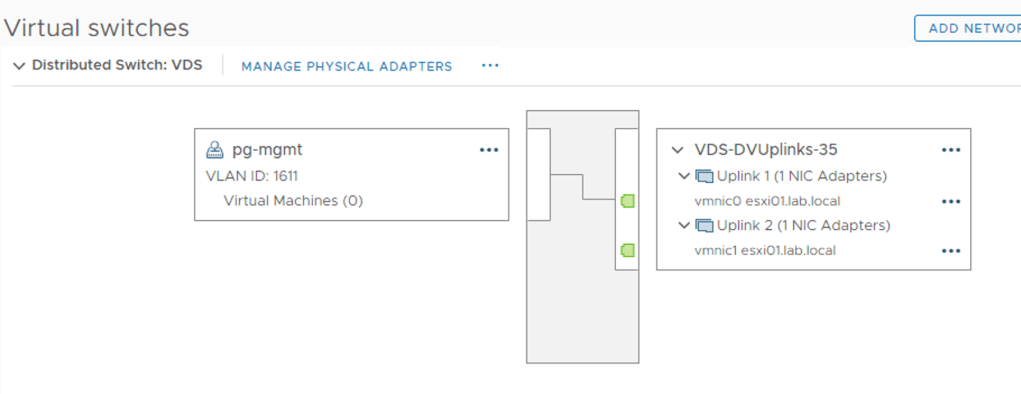
    We create our distributed port groups for management, vMotion, storage, and possibly VM networking and then add our hosts to the new VDS. Here pNICS are assigned to the VDS uplinks:

    We migrate the VMkernel adapters to their respective DVPGs and can remove the standard switch. We’re done in vSphere.

    Step 2 – Prepare NSX-T

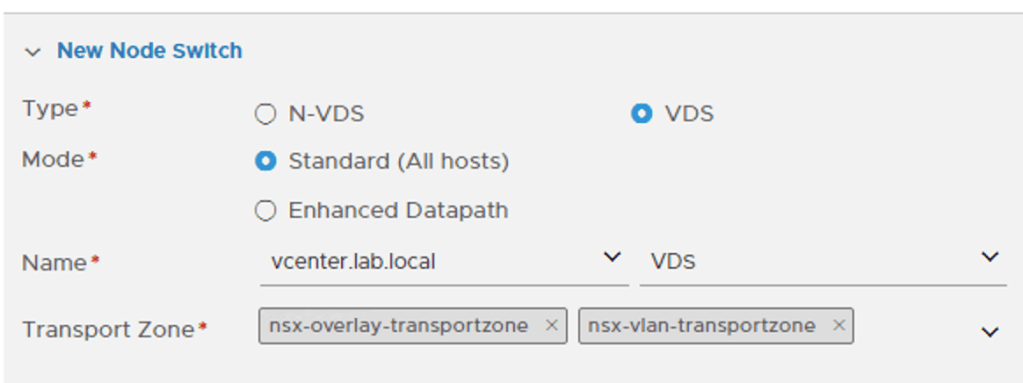
    On the NSX-T side we start with creating a Transport Node Profile. Besides an N-VDS we can now select a VDS as the Node Switch type which is exactly what we want:

    When choosing a VDS we need to pick a vCenter instance and a VDS 7.0. Please note that the vCenter instance needs to be added as a Compute Manager to NSX-T before it can be selected here.

    Further down on the same form we map the uplinks as defined in the NSX-T Uplink Profile to the uplinks of the VDS:

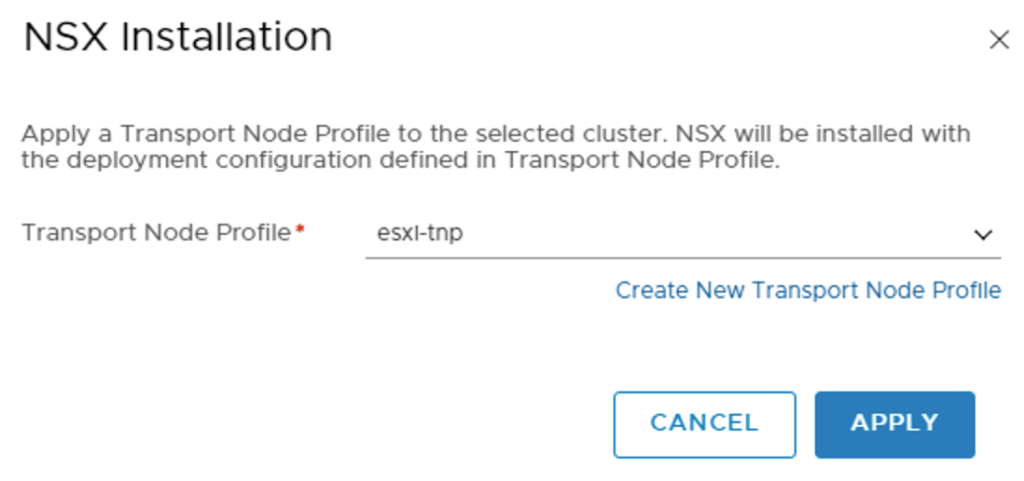
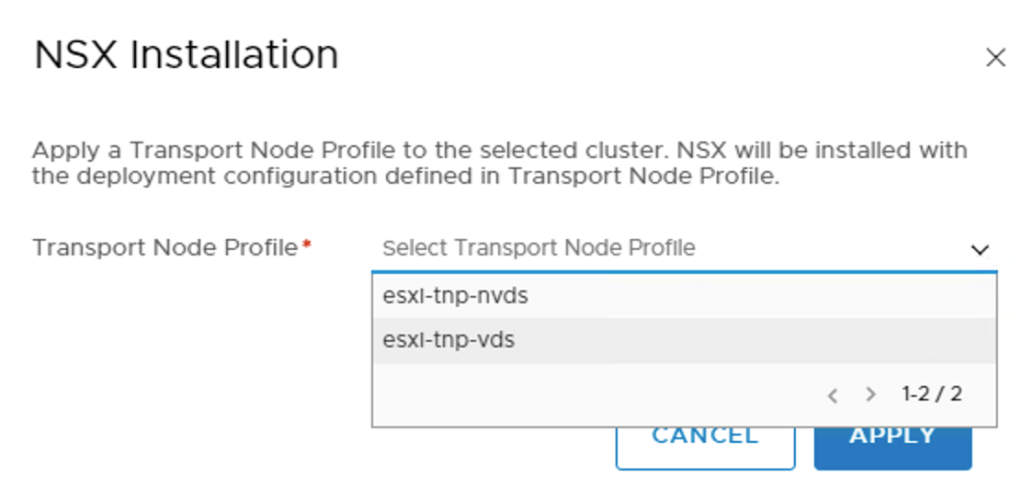
    The final step is to prepare the ESXi hosts by attaching the new Transport Node Profile to the vSphere cluster:

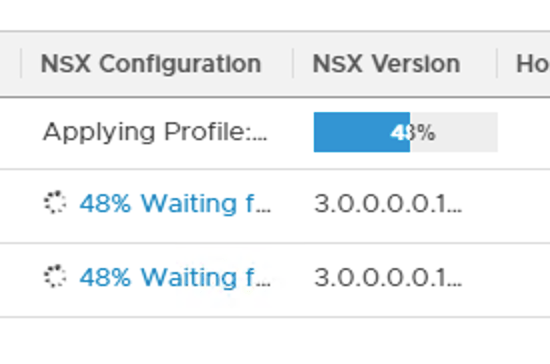
    This will install the NSX-T bits as well as apply the configuration on the ESXi hosts:

    A closer look at the VDS 7.0

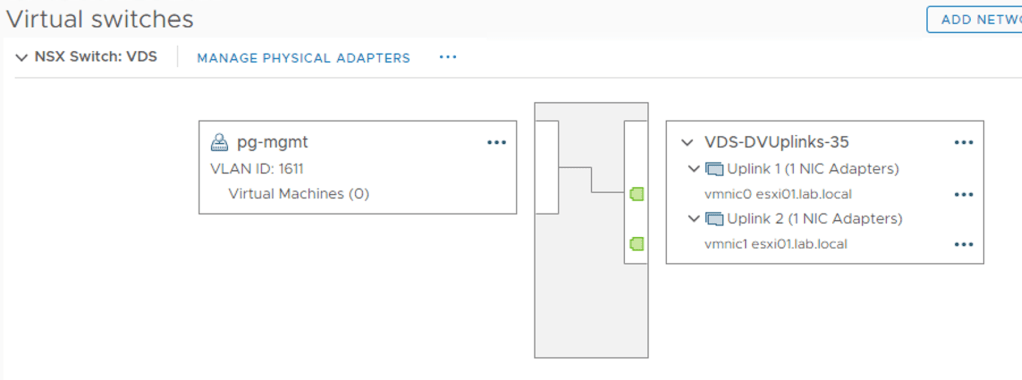
    In vCenter, if we look really carefully we can see that this VDS is now in use by NSX-T (too):

    It’s a bit hard to spot, but the VDS is now of the type NSX Switch. This is mostly a cosmetic difference. From the vSphere perspective an NSX Switch is still just an ordinary VDS 7.0.

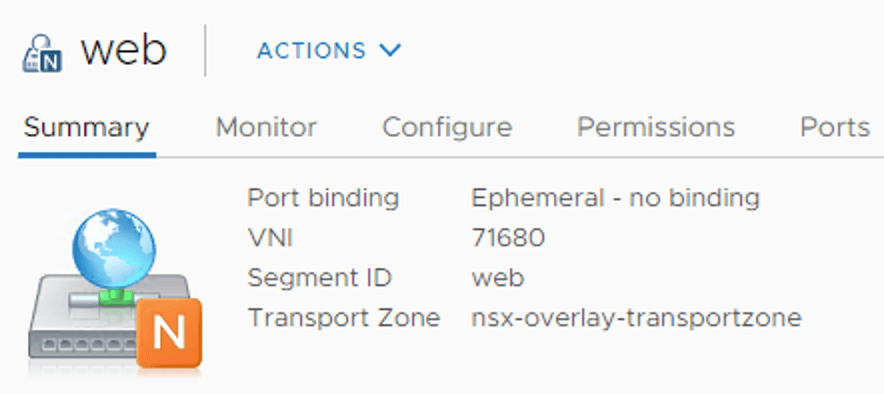
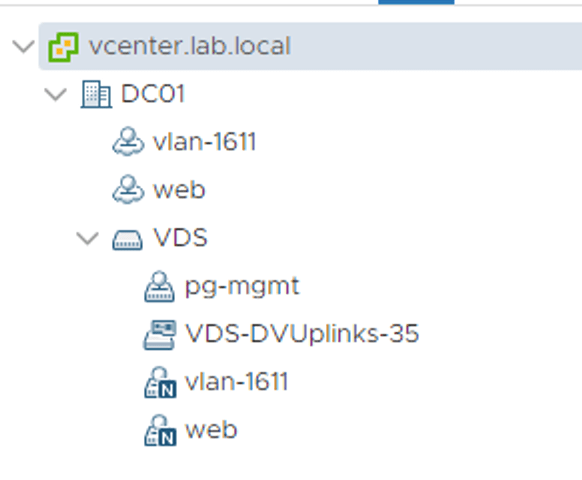
    NSX-T segments that are backed by the VDS now show up as NSX distributed port groups:

    Some NSX-T specific information like VNI, segment ID, and transport zone is visible from here which could come in handy one day.

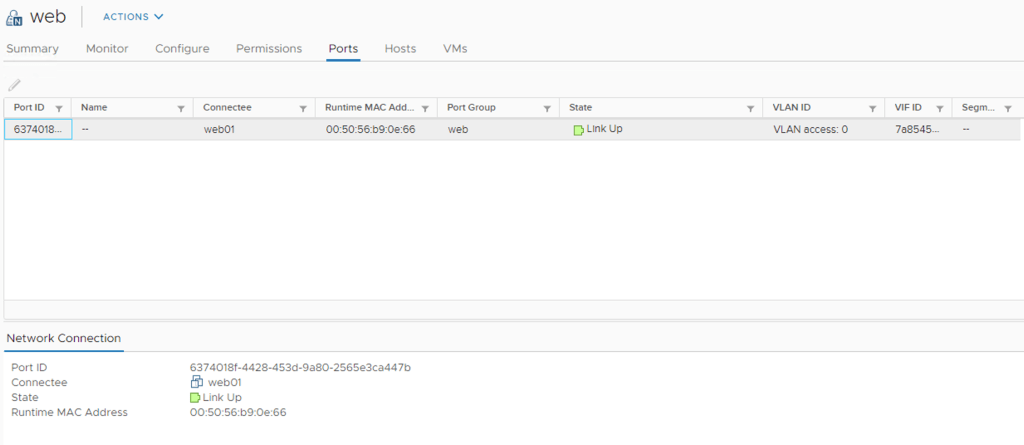
    Under Ports we can find some more NSX-T information like Port ID, VIF ID, and Segment Port ID which are coming straight from NSX-T:

    When selecting an NSX distributed port group, the Actions menu contains a shortcut to the NSX Manager UI:

    No editing in vCenter. The NSX distributed port groups are NSX-T objects (segments) and are managed through the NSX-T management plane.

    Brownfield scenario

    We just upgraded our environment to vSphere 7 and NSX-T 3.0. The ESXi hosts were previously configured as NSX-T transport nodes and both of their pNICS belong to the N-VDS. The configuration process in this scenario involves the following high level steps:

    1. Create a new vSphere cluster
    2. Install and configure VDS 7.0
    3. Create new NSX-T Transport Node Profile
    4. Configure mappings for uninstall
    5. Move ESXi host to the new cluster
    6. Attach a Transport Node Profile to the new cluster
    7. vMotion virtual machines
    8. Repeat steps 5 + 7 for the remaining ESXi hosts

    Migrating NSX-T to VDS 7.0 involves many more steps and also some data plane disruption. Let’s see how it’s done.

    Step 1 – Create new vSphere cluster

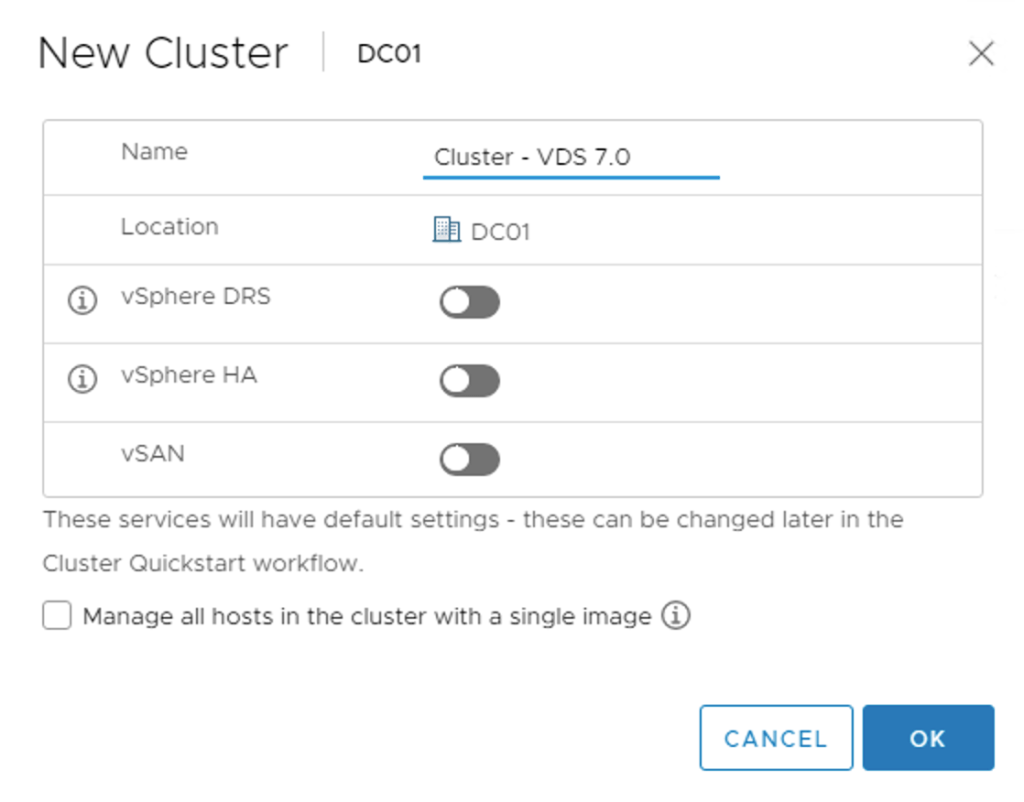
    Quite a first step, but to minimize data plane disruptions, a new vSphere cluster is created. This cluster will be configured with the VDS-based Transport Node Profile in a later step:

    UPDATE (17/04/2020) – When creating the new vSphere cluster, make sure that the “Manage all hosts in the cluster with a single image” is not selected. This feature is currently incompatible with NSX-T 3.0. Thank you Erik Bussink for pointing this out in the comments.

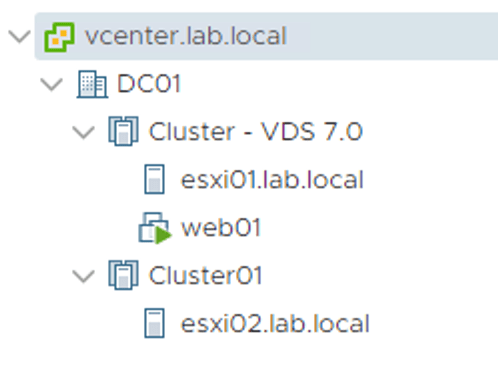
    The existing and the new cluster next to each other as seen in vSphere Client:

    Step 2 – Install and configure VDS 7.0

    Like in the greenfield scenario we create a new version 7.0 vSphere Distributed Switch:

    And set the MTU to at least 1600 bytes:

    Next, we add the ESXi hosts to the new VDS, but without migrating any pNICS or VMkernel adapters. At this point the ESXi hosts just need to know that the new VDS exists:

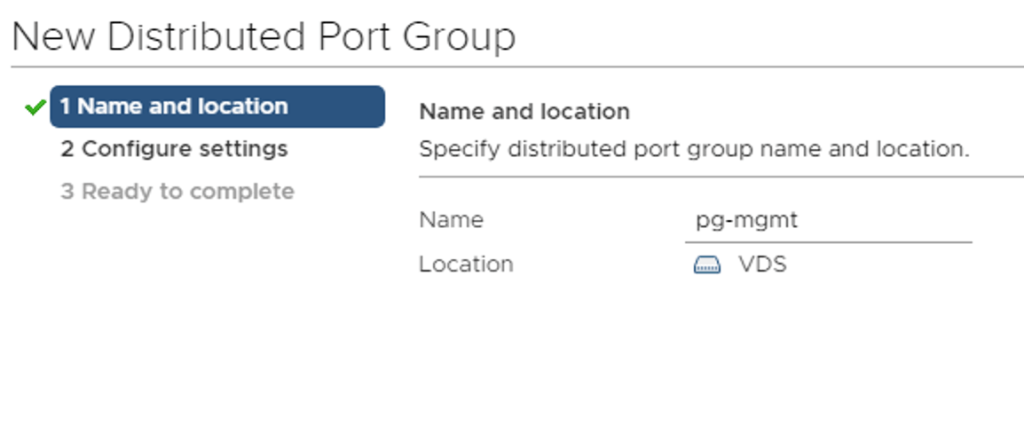
    We create distributed port groups for the VMkernel adapters that are currently on the N-VDS. These need to be created in advance to ensure a smooth migration of VMkernel adapters later:

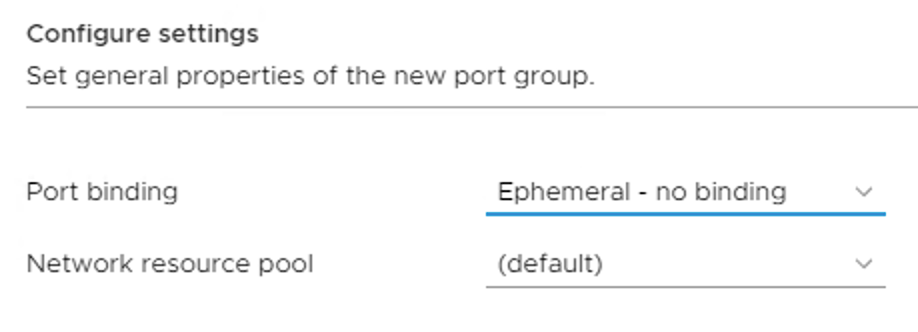
    One important detail here is that these “VMkernel” distributed port groups need to be configured with a Port binding set to Ephemeral:

    Step 3 – Create new NSX-T Transport Node Profile

    Now we create a new Transport Node Profile that is configured with a VDS type Node Switch. Select the vCenter instance and the VDS 7.0:

    We configure the Teaming Policy Switch Mapping that maps uplinks defined in the uplink profile to the uplinks of the VDS 7.0:

    Step 4 – Configure mappings for uninstall

    A new feature in NSX-T 3.0 is that when moving an ESXi host out of a vSphere cluster that has a Transport Node Profile attached, NSX-T is automatically uninstalled from that host.

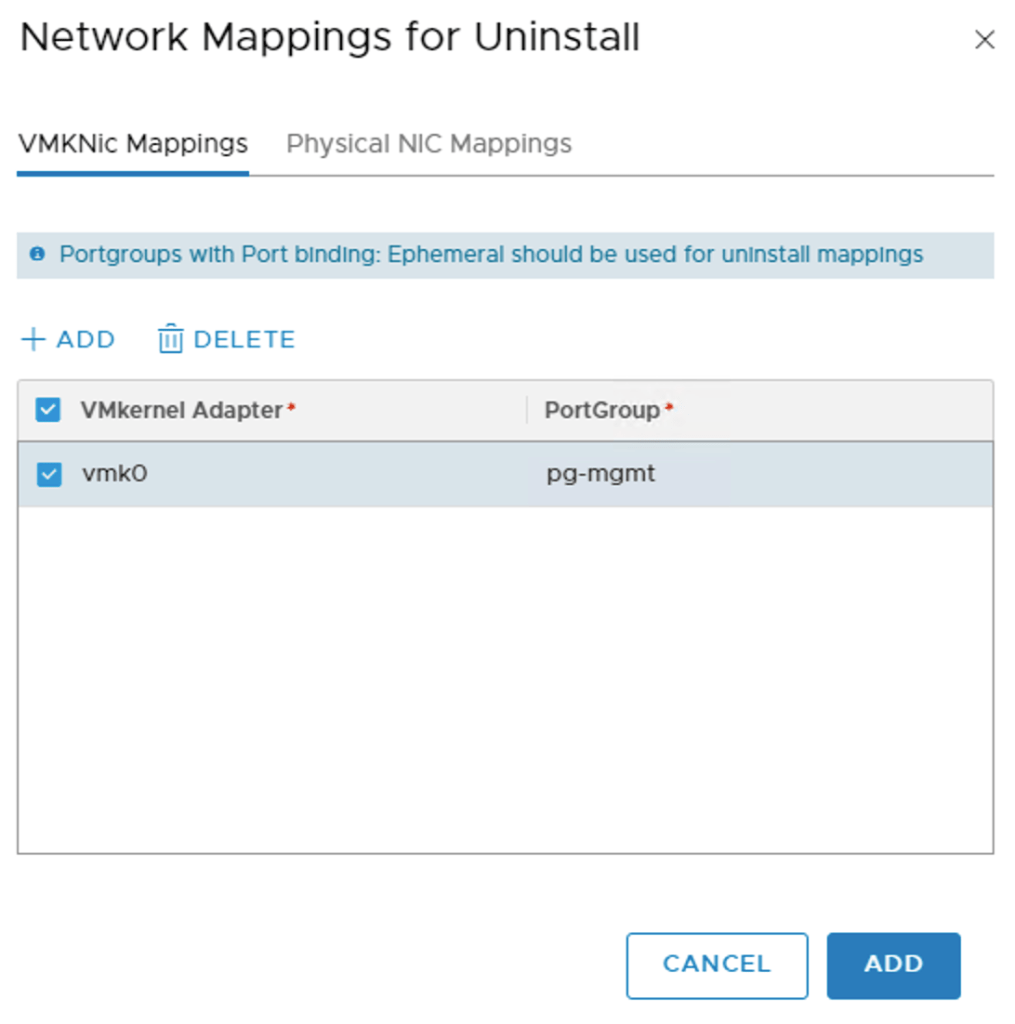
    The uninstall process needs to know what to do with the ESXi host’s pNICS and VMkernel adapters. This information is configured under Network Mappings for Uninstall on the Transport Node Profile that is attached to the host’s current vSphere cluster:

    Under VMKNic Mappings we map the current VMkernel adapters to the distributed port groups that we created as part of step 2:

    Similarly, under Physical NIC Mappings we add the pNICS that should be handed over to the VDS:

    Step 5 – Move ESXi host to the new vSphere cluster

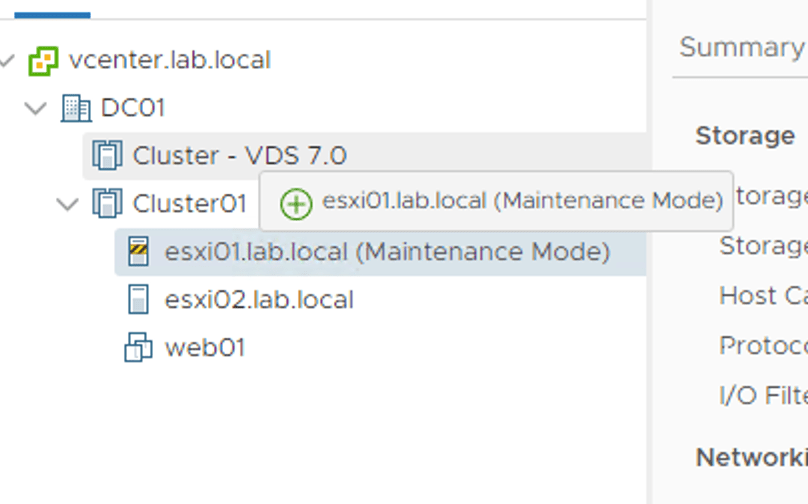
    We put the ESXi host in maintenance mode so that it can be moved to the new vSphere cluster:

    Once moved, the NSX bits and configuration are automatically removed from the ESXi host:

    Thanks to the uninstall mappings configured at step 4, the ESXi host’s pNICs and VMkernel adapters are migrated to the VDS:

    Step 6 – Attach Transport Node Profile

    With compute resources available in the new vSphere cluster, we can attach the new Transport Node Profile to the vSphere cluster:

    NSX bits and configuration are once again installed on the ESXi host:

    When the NSX installation is done our new VDS 7.0 is being presented as an NSX switch. This so we know it is used by NSX-T:

    During the migration process the same NSX-T segments will be shown twice in vCenter:

    Once as opaque networks available to VMs in the source vSphere cluster, and once as NSX distributed port groups available to VMs in the target vSphere cluster.

    Step 7 – vMotion virtual machines

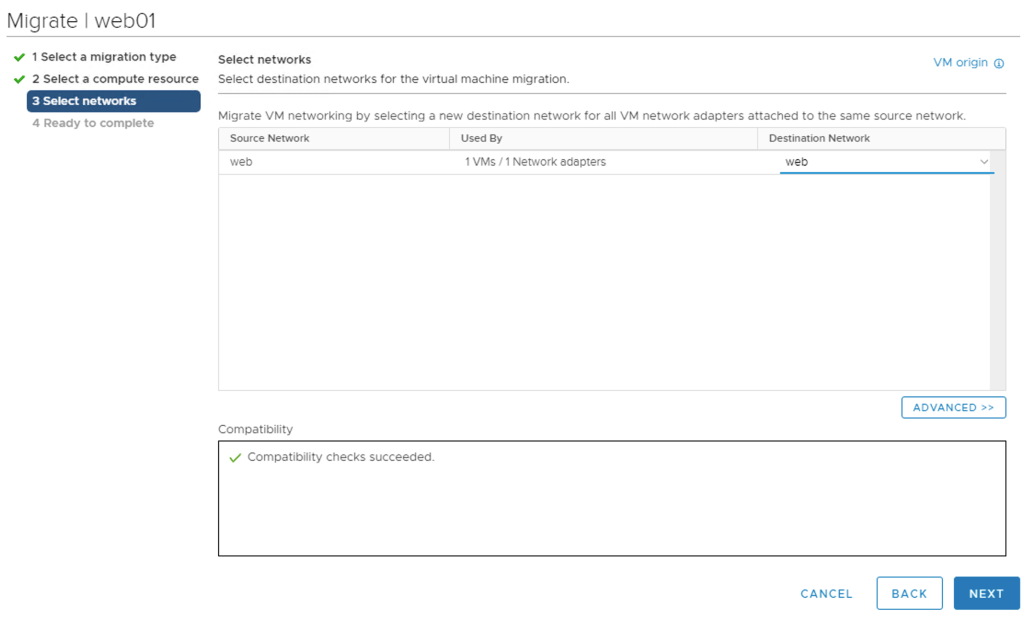
    The NSX distributed port groups are the destination networks when VMs are being vMotioned to the new vSphere cluster:

    vMotion seems to be smart enough to understand that the source opaque network and the destination NSX distributed port group are the same.

    Step 8 – Repeat step 5 + 7

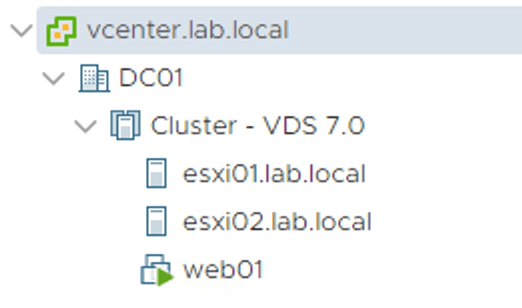
    Now we simply repeat step 5 and 7 for the remaining ESXi hosts and virtual machines until the source vSphere cluster is empty and can be deleted:

    Mission completed! 🙂

    Summary

    While setting up vSphere and NSX-T for the VDS 7.0 in a greenfield scenario is a simple and straight forward process, doing the same in a brownfield/migration scenario requires significantly more work. There’s room for some improvement here which most likely will be addressed in a future release.

    All-in-all there is little doubt that this new NSX-T – vSphere integration is good news for customers running or planning to run NSX-T in a vSphere environment.

    Thanks for reading.
  • Welcome back! Today we continue our NSX-T Multisite adventure. Let’s begin with a short recap of what we did in part 1.

    We started off in an environment with a production site and a partially deployed disaster recovery site. Tasked with configuring the NSX-T 2.5.1 implementation for the new multisite environment, we took the following steps:

    • Enabled DNS based access for transport nodes.
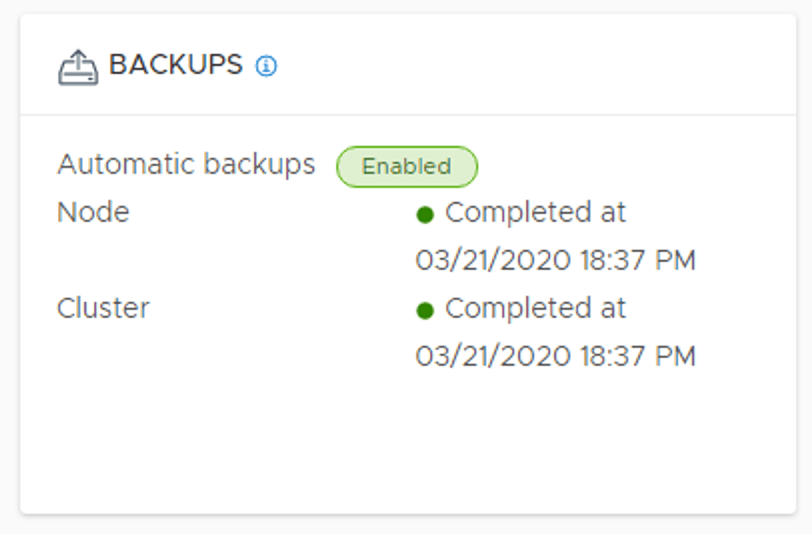
    • Moved the SFTP NSX-T backup target to the DR site.
    • Deployed a standalone NSX Manager node at the DR site.
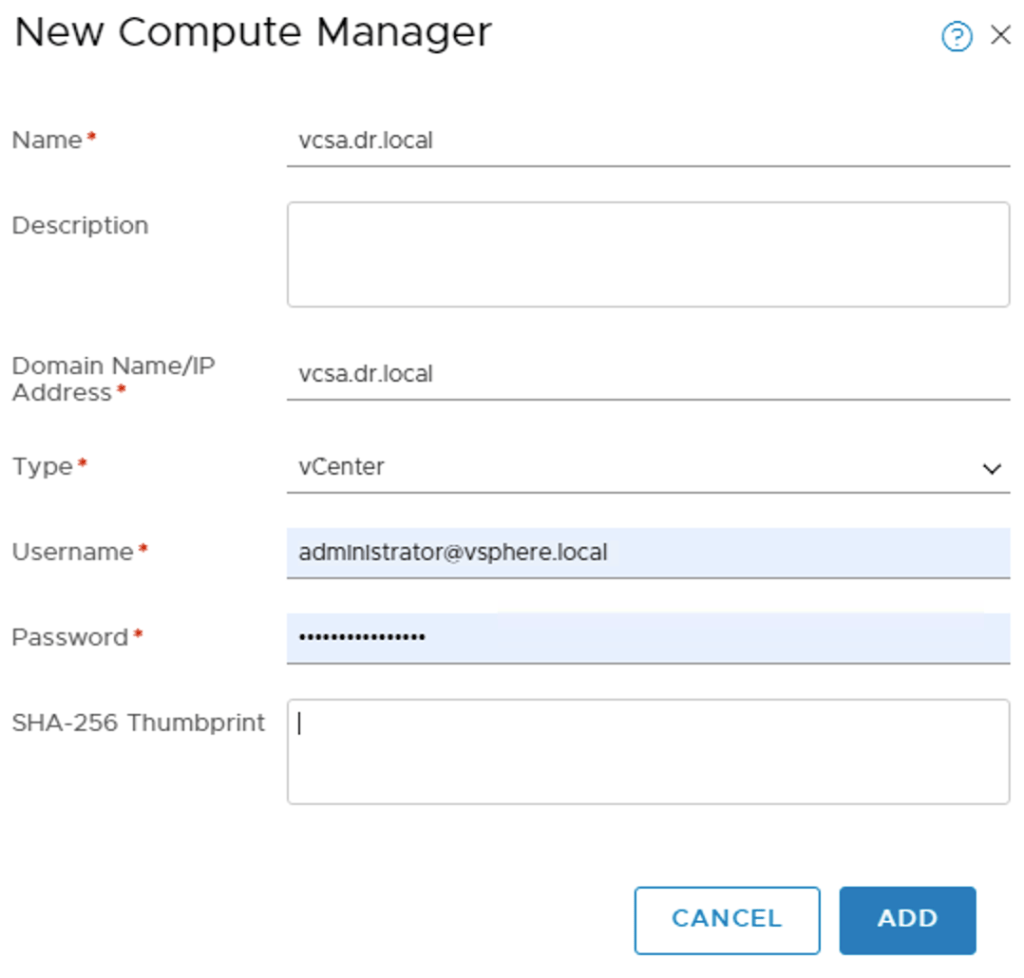
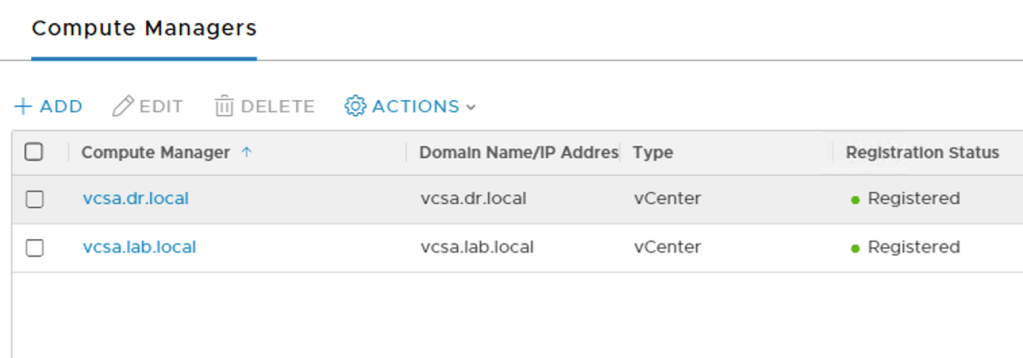
    • Added the DR site’s vCenter instance as a compute manager to NSX Manager.
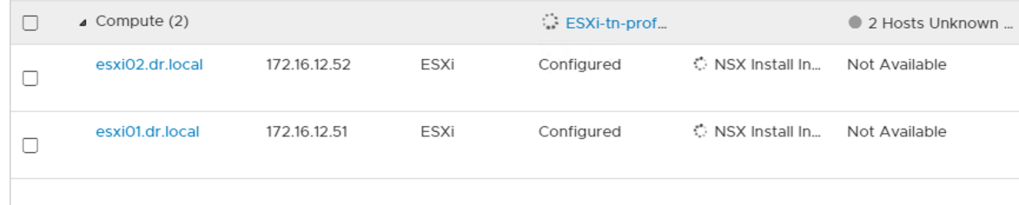
    • Configured NSX-T transport nodes at the DR site.
    • Set up a Tier-0 Gateway at the DR site.

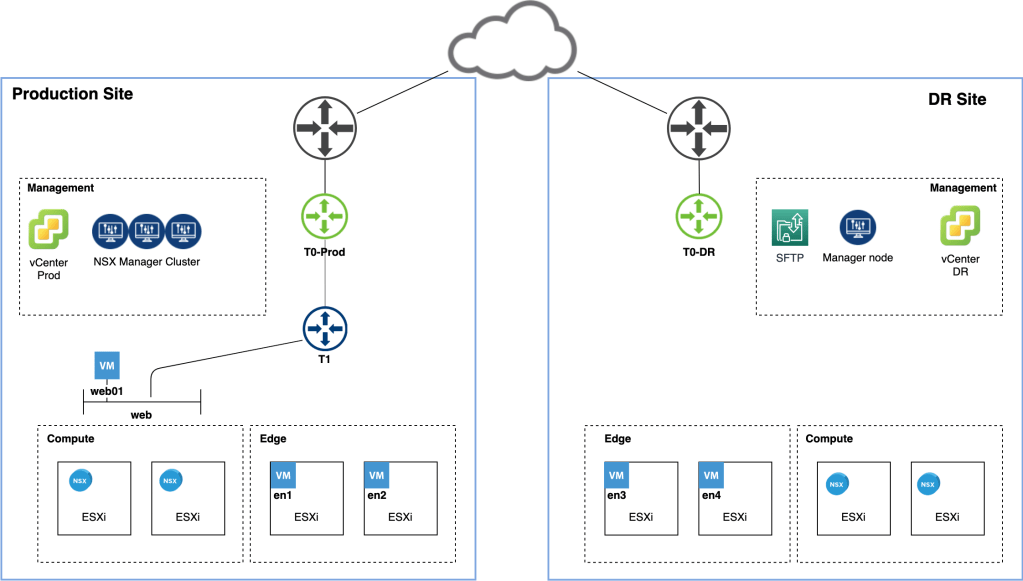
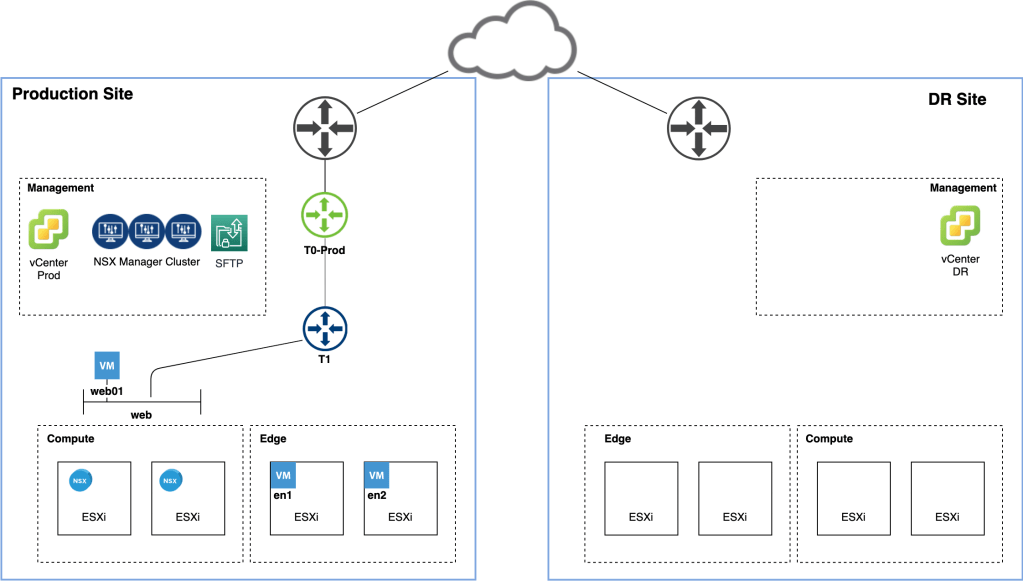
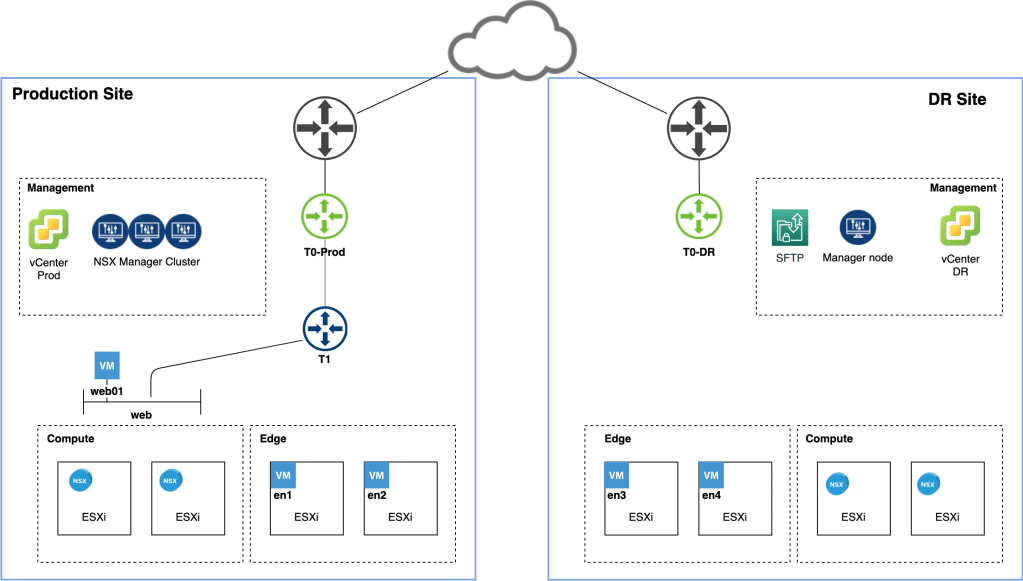
    This resulted in a fully incorporated DR site from an NSX-T perspective:

    Life is good. If only things could stay like this forever…

    Disaster!

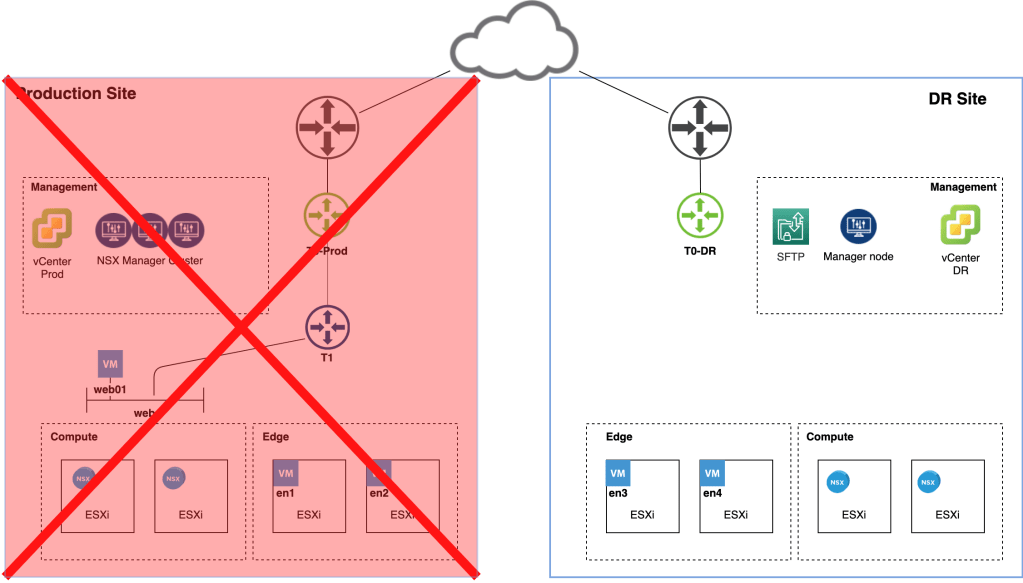
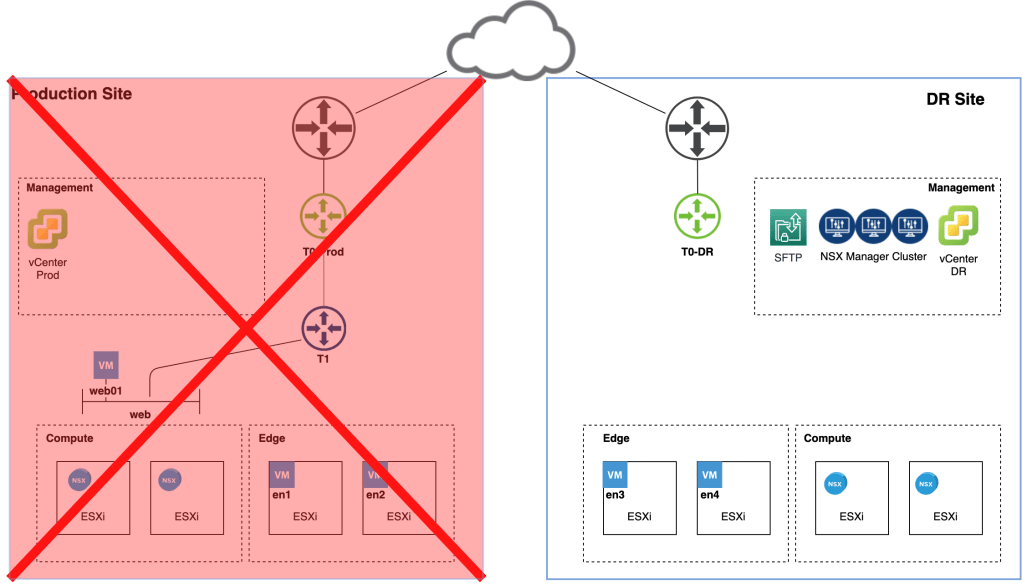
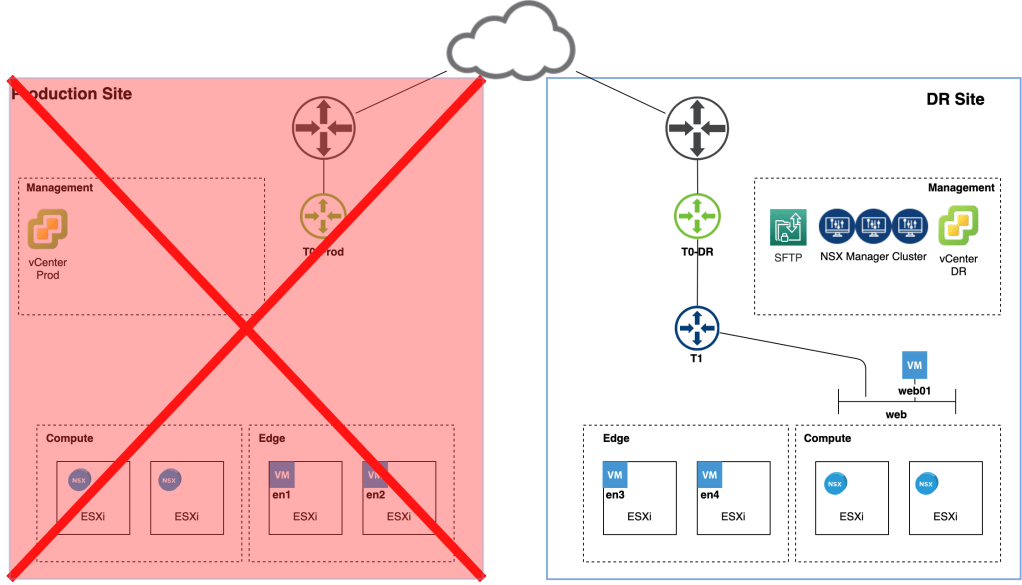
    We knew this was going to happen sooner or later. The production site just experienced a complete meltdown and isn’t coming back online any time soon:

    We need to perform a fail over to the DR site and we have about an hour to get this done. No time to waste!

    DNS

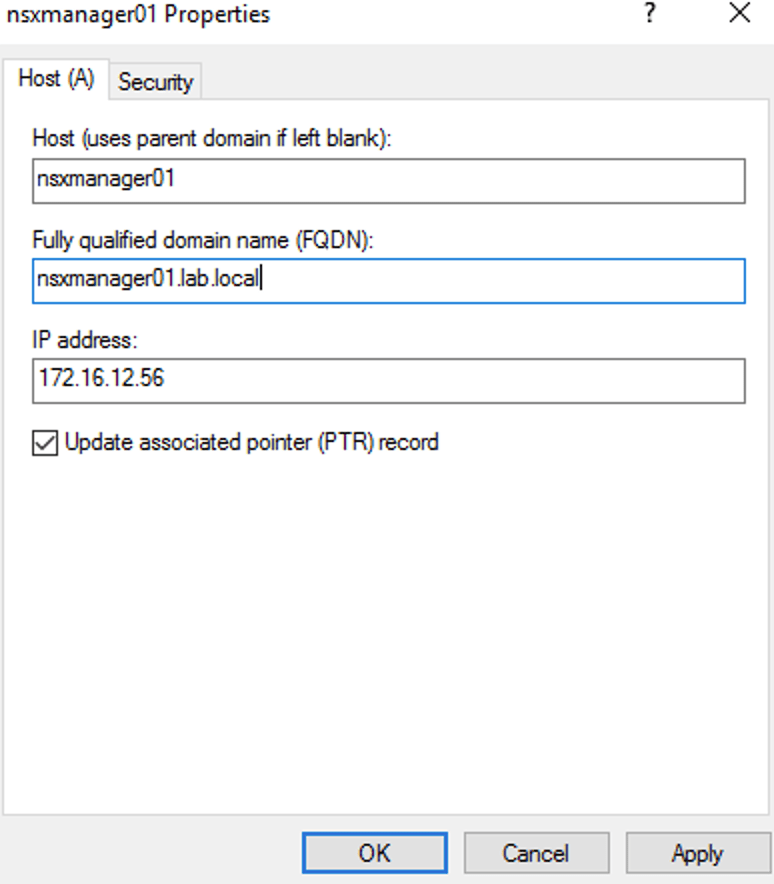
    The first thing we need to do is update the DNS records for the NSX Manager nodes with IP addresses that are part of the DR site’s management network:

    In our scenario the following four records need to be updated:

    nsxmanager.lab.localNSX Manager cluster VIP
    nsxmanager01.lab.localFirst manager node (already deployed at the DR site)
    nsxmanager02.lab.localSecond manager node
    nsxmanager03.lab.localThird manager node

    Enable FQDN

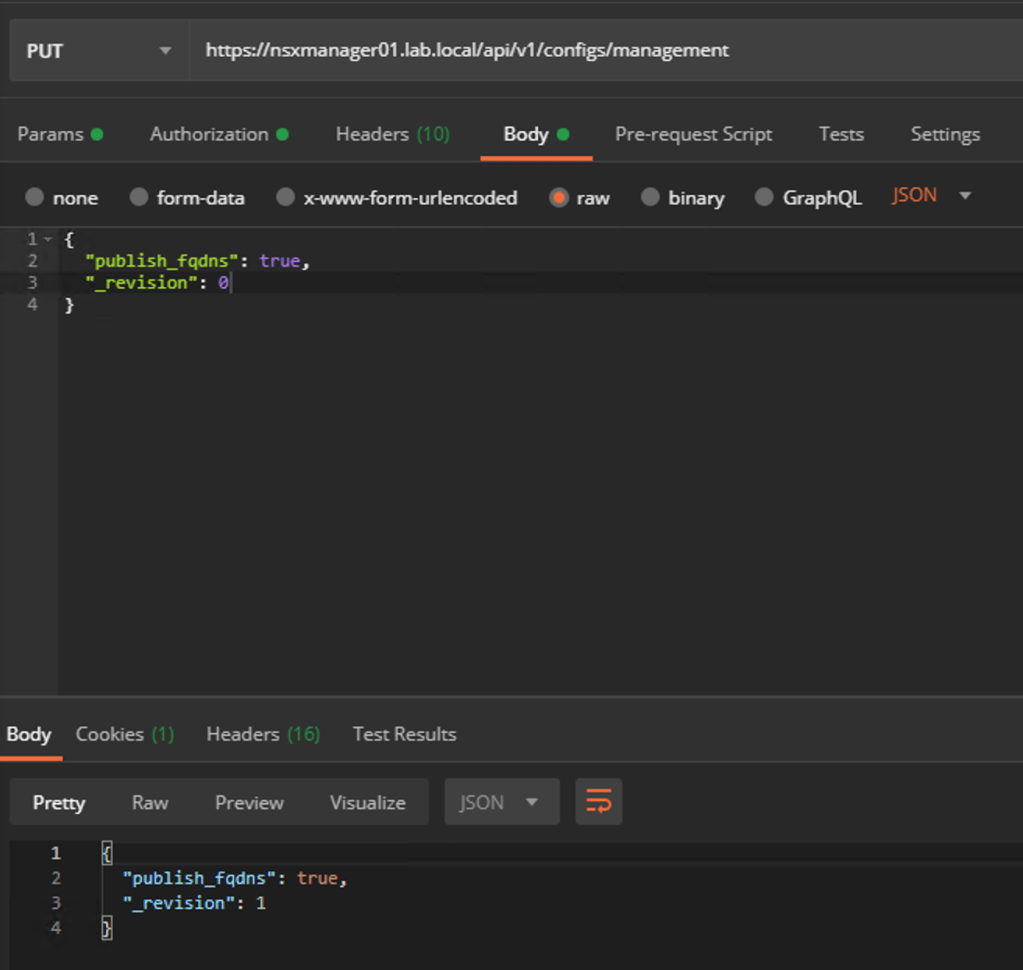
    Before we can restore an NSX backup we need to enable FQDN on the single NSX Manager node at the DR site. Without FQDN enabled the node won’t recognize the backup files on the SFTP backup target.

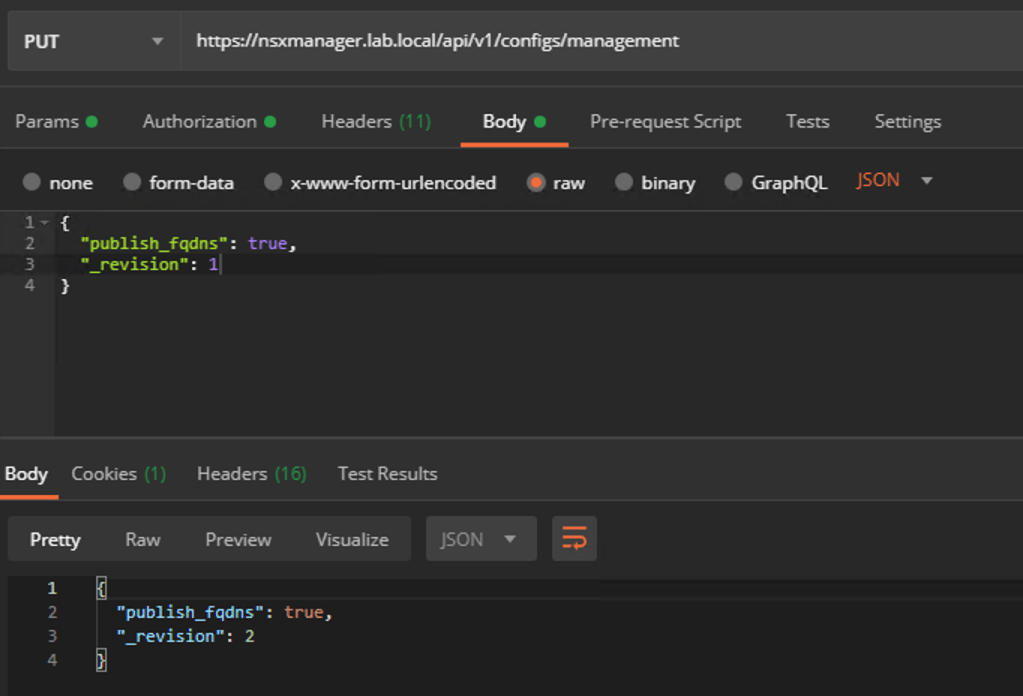
    Issue the following API call to enable FQDN on the manager node:

    PUT https://<nsx-mgr>/api/v1/configs/management

    The request body should contain the following JSON code:

    { 
      "publish_fqdns": true, 
      "_revision": 0 
    }

    Management/Control plane restore

    With updated DNS records and FQDN enabled we can start the restore of the NSX Manager cluster.

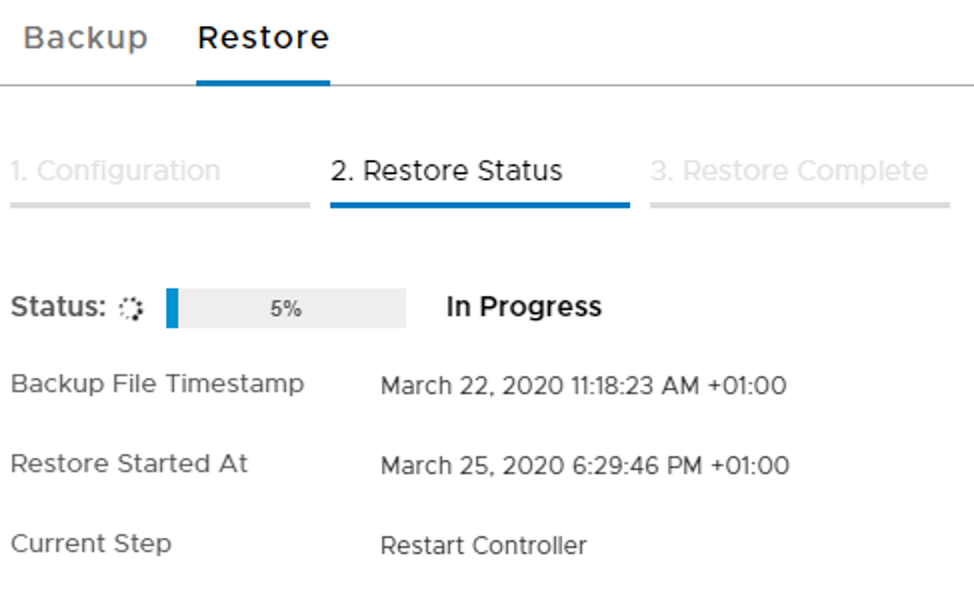
    We log in to the manager node and navigate to System > Lifecycle Management > Backup & Restore > Restore:

    We choose the most recent backup and click the Restore button to start the process.

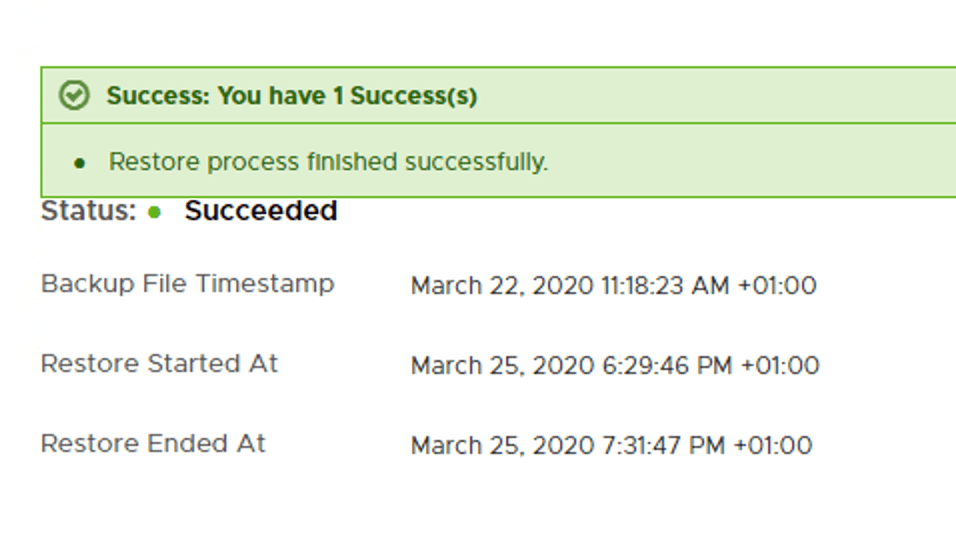
    Restoring might take a while and hopefully ends with this message:

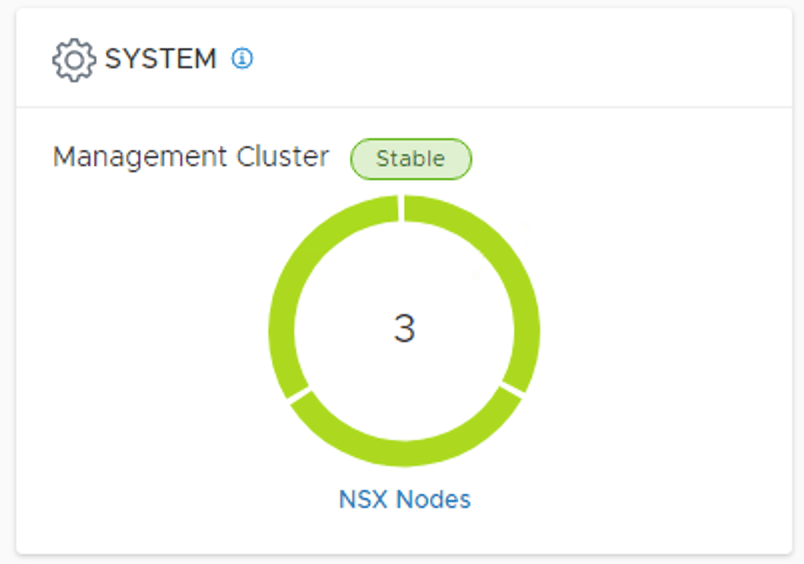
    During the restore process we deploy two additional manager nodes which means we now have a production grade NSX Manager cluster at the DR site:

    Verify transport node connectivity

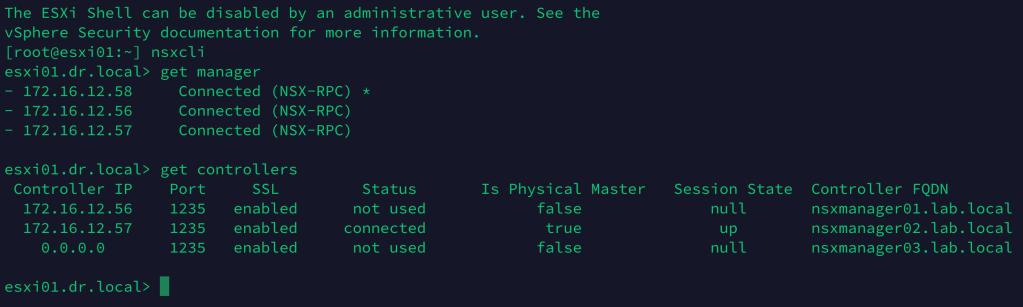
    To verify connectivity between the transport nodes and the manager/control nodes, we can run the get managers and the get controllers NSXCLI commands from any of the transport nodes:

    Data plane restore

    Now that the central management/control plane is up and running again we can focus on recovery of the data plane. Let’s first have a quick look at the current situation:

    The DR site is missing an important piece of logical network: The Tier-1 Gateway.

    Luckily, this is software defined networking and we’ll resolve this issue both swiftly and elegantly. Our weapons of choice are UI, API, or script. For reasons of clarity we will use the UI here.

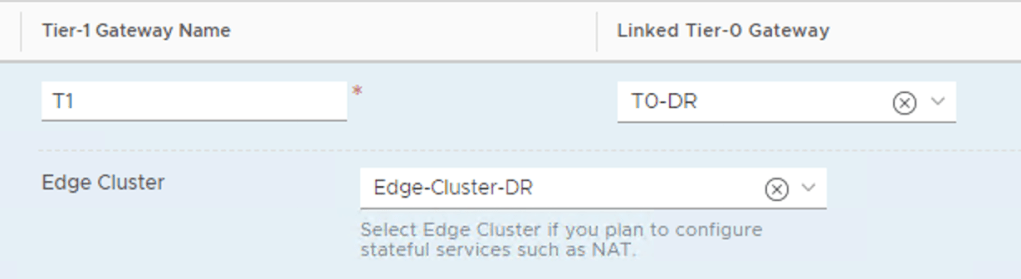
    In the NSX Manager UI we navigate to Networking > Connectivity > Tier-1 Gateways and edit the Tier-1 Gateway object:

    Here we simply change the Linked Tier-0 Gateway to the Tier-0 of the DR site and the Edge Cluster to the Edge Cluster running at the DR site. Click Save to activate the changes.

    Automation

    If we would like to automate this Tier-1 reconfiguration, as part of some DR orchestration for example, we can basically use any method we like as long as it can interact with the NSX-T REST API.

    From the VMware NSBU comes a PowerShell script written by Dale Coghlan (thanks also to Dimitri Desmidt). You can get it over here. I won’t go into the details of this script, but if we were to use it in our DR scenario the syntax looks something like this:

    .\t1-move-policy.ps1 -NsxManager nsxmanager.lab.local -username admin -Password VMware1!VMware1! -SrcTier0 T0-Prod DstTier0 T0-DR DstEdgeCluster Edge-Cluster-DR -Tag Reallocate -Scope DR

    Other options for automating would be REST API calls or tools like Terraform or Ansible.

    Compute?

    Well, compute was taken care of by the Site Recovery Manager team. We were quite busy restoring that NSX platform after all.

    Workloads have been recovered at the DR site as this final picture shows:

    Summary

    This completes our NSX-T Multisite exercise. It’s been quite a journey. Let’s have a look at the run book for this NSX-T Multisite DR scenario:

    Preparation phase

    1. Enable FQDN on the NSX Manager cluster.
    2. Place the SFTP backup target on the DR site.
    3. Deploy a standalone NSX Manager node at the DR site.
    4. Add the DR site’s vCenter instance as a compute manager.
    5. Configure/deploy NSX-T transport nodes at the DR site.
    6. Configure a Tier-0 Gateway at the DR site.

    Disaster Recovery phase

    1. Update DNS records
    2. Enable FQDN on the standalone NSX Manager node
    3. Restore NSX Manager backup and 3-node cluster
    4. Reconfigure the Tier-1

    Quite a checklist you might say. There are indeed some additional moving parts in this particular scenario. On the other hand, the non-disruptive preparations are done just once and a full NSX-T site recovery takes less than an hour. It’s not so bad.

    I hope you learned something new and useful. I know I did. Thanks for reading.
    References:
    NSX-T 2.5 Multisite document (Jerome Catrouillet, Dimitri Desmidt)

  • When it comes to creating a design for NSX-T Multisite, use case and geography are two key factors.

    Two common use cases for organizations to start looking at a multisite architecture are:

    • Disaster Recovery – Protection against site failure.
    • Availability – Workload pooling with active workloads at each site facilitating higher service availability.

    Site geography from an NSX-T Multisite perspective divides multisite environments into two categories:

    • Metropolitan region (<10 ms between any two sites)
    • Large distance region (<150 ms between any two sites)

    Together these variables give us four NSX-T Multisite scenarios to work with. All of them come with their own prerequisites, requirements, and capabilities.

    In this article and the next I’m going to have a closer look at NSX-T Multisite in a “large distance – disaster recovery” scenario. Probably not the most common scenario and technically a bit more challenging which makes it all the more interesting to write about of course.

    In this first part we focus on deploying and configuring the various NSX-T components for the multisite scenario. In part two we will look at what happens and needs to be done when a site failure occurs.

    So where do we begin? With a picture of course!

    The environment

    The diagram below shows the starting point of our NSX-T Multisite journey:

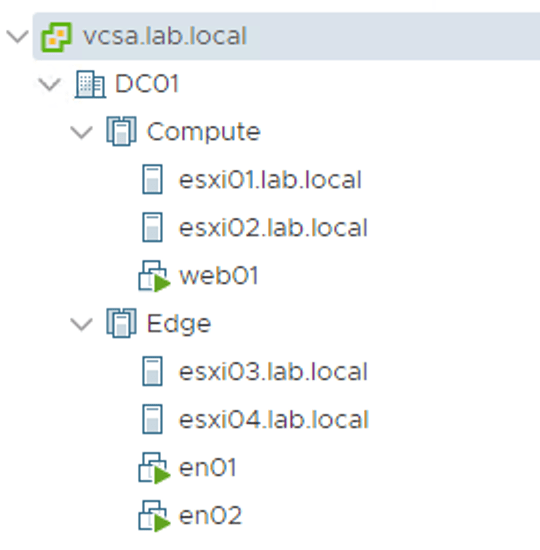
    We have a production site where NSX-T 2.5.1 has been deployed. Workloads in the vSphere 6.7 U3 Compute cluster are connected to NSX-T segments behind a Tier-1 Gateway. The NSX-T Edge transport nodes are hosted in a dedicated vSphere cluster and a separate Management cluster hosts vCenter, NSX Manager, and a SFTP backup target.

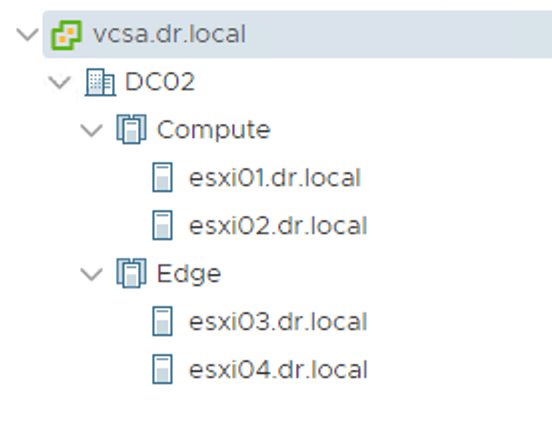
    A second, identically equipped, disaster recovery site was recently put into operation. vSphere has just been installed and we’re now ready to configure NSX-T to leverage the new site redundancy.

    Enable DNS

    By default NSX-T transport nodes access the manager/controller nodes on their IP address. It is possible to change this behaviour so that FQDN is used instead.

    Using DNS instead of IP address might or might not be a good practice, but for our NSX-T Multisite scenario it is a requirement.

    Before enabling FQDN based access make sure that forward and reverse DNS records for the NSX Manager nodes and optionally the Manager cluster VIP are in place. Preferably these DNS records have a low TTL like 5 minutes or less.

    Enable FQDN with the following API call:

    PUT https://<nsx-mgr>/api/v1/configs/management

    With the request body containing the following piece of JSON code:

    { 
      "publish_fqdns": true, 
      "_revision": 0 
    }

    To verify that the transport nodes are successfully accessing the Manager/Controller nodes by FQDN, run the get controllers NSXCLI command from any transport node and check that the FQDNs are shown in the Controller FQDN column:

    You probably figured this one out already, but from now on the DNS service hosting these records is critical for NSX-T’s wellbeing and we need to think about its availability. Hosting the DNS service on a third site might be something to consider here.

    SFTP backup target

    We’re doing disaster recovery here and as part of the NSX Manager recovery we need to be able to restore from an NSX Manager backup. For this reason it’s a good idea to move the SFTP backup target out of the production site. We could relocate it to a third site or to the DR site. Here I’m moving the SFTP server to the DR site:

    After moving the SFTP backup target we should verify that backup is still working. We don’t want any surprises here:

    We also need to make sure that Detect NSX configuration change is enabled under the backup schedule:

    Enabling this setting effectively enables continuous backup to the third/DR site.

    NSX Manager node

    As mentioned before, when the production site goes down, the NSX Manager cluster will be restored on the DR site. The restore operation requires a new NSX Manager node.

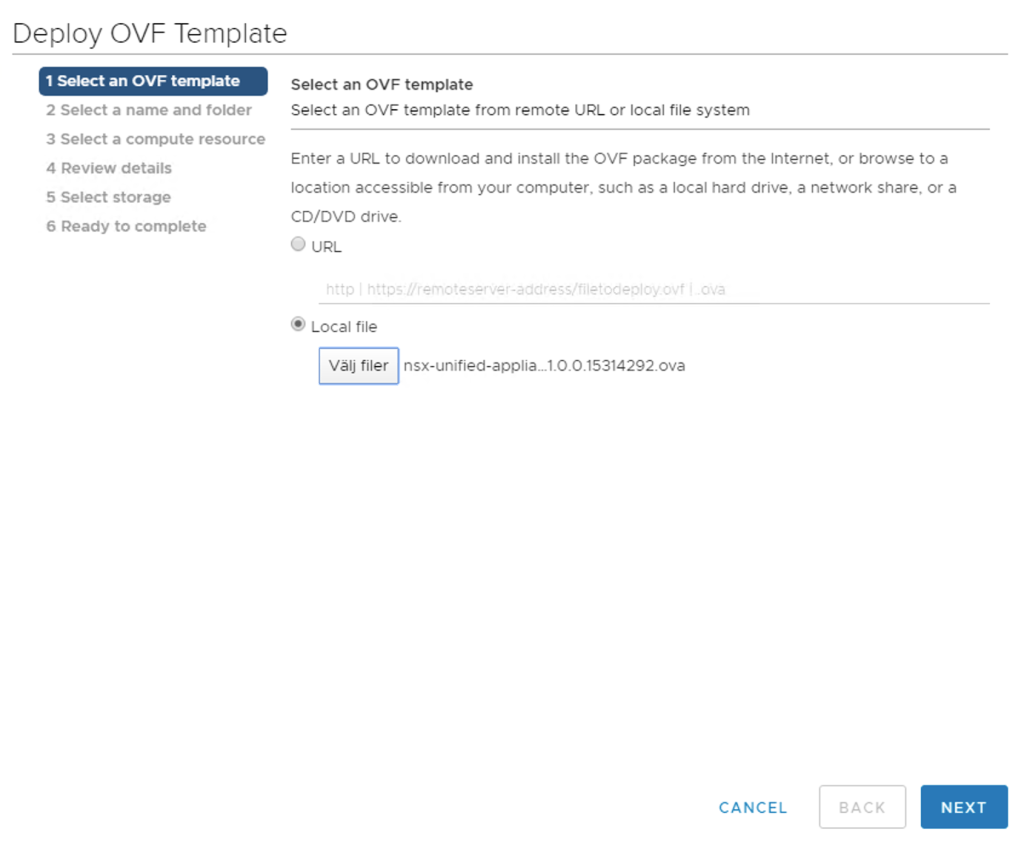
    To save valuable time in a possibly stressful DR situation, we will deploy this NSX Manager node in advance using the NSX Manager OVF:

    The base configuration that is done during the OVF deployment is sufficient for now. It’s just a restore target after all. We do want to document the node’s IP address because we need it when updating DNS.

    One other thing we can do to save even more time is to configure the SFTP server settings. We do this from the new NSX Manager’s UI under System > Lifecycle Management > Backup & Restore > Restore:

    That’s one less thing to worry about.

    Compute Manager

    Back at the production site it’s time to add the DR site’s vCenter instance as a Compute Manager to NSX Manager:

    NSX Manager having access to the DR site’s vSphere environment makes it easier to deploy, configure, and manage transport nodes during normal circumstances.

    Configure ESXi transport nodes

    The ESXi hosts at the DR site will be incorporated into NSX-T by configuring them as transport nodes. This is done the ordinary way and might involve creating an uplink profile, transport node profile, and IP pool to match the specifics of the DR site:

    Deploy Edge transport nodes

    Just like the production site the DR site will have its own Tier-0 Gateway fuelled by two Edge transport nodes. Deploying these Edge transport nodes might also involve creating an uplink profile (when VLAN IDs for the transport VLAN do not match between the sites for example):

    The new Edge nodes at the DR site are then added to their own NSX-T Edge Cluster:

    Tier-0 Gateway

    And here comes the Tier-0 Gateway with its external interfaces and routing configuration so that communication between NSX-T and the physical network at the DR site is possible:

    Make sure to select the Edge Cluster belonging to the DR site.

    Review

    Time for another look at the diagram now that we’ve deployed and configured the NSX-T components at the DR site:

    From an NSX-T perspective the DR site is now fully incorporated. In other words the transport nodes and logical network constructs of both sites are managed by the same NSX Manager cluster.

    Summary

    This completes part one of the series. We prepared NSX-T for site failover by making some configuration changes and deploying the necessary NSX-T components at the DR site. A quick summary of what we’ve done:

    • Enabled FQDN so that transport nodes to use DNS instead of IP when accessing the central management/control plane.
    • Moved the SFTP backup target to the DR site.
    • Deployed an “empty” NSX Manager node at the DR site.
    • Added vCenter DR as a compute manager to NSX Manager.
    • Configured and deployed NSX-T transport nodes at the DR site.
    • Configured a Tier-0 Gateway at the DR site.

    Not too bad! In part two we will continue our journey and dive into handling an actual production site failure. Stay tuned!

  • NSX-T Guest Introspection With Trend Micro Deep Security

    Integrating third party security services with NSX has always been a popular feature of the platform. While NSX comes with its own set of robust security services, there are scenarios where additional workload protection is required. The ability for a partner solution to leverage the rather unique layer in which the NSX platform operates with regard to the workloads makes for a pretty powerful service.

    There are two main types of NSX-T partner integrations. We have Service Insertion for inspection of network traffic and Endpoint Protection (aka Guest Introspection) which provides agentless antimalware and antivirus capabilities for virtual machines.

    In today’s article I’m having a look at setting up NSX-T Guest Introspection through integration with Trend Micro Deep Security.

    Guest Introspection Architecture

    Before we dive into configuring this integration, let’s have brief look at the major components that make up the Guest Introspection solution in NSX-T 2.5:

    So what we have here is:

    • NSX Manager Cluster – Responsible for pushing configuration to the ESXi hosts (carried out by the controller component).
      undefined
    • Partner Console – The partner solution interface for managing the guest introspection solution on the partner solution side. For example Trend Micro Deep Security Manager (DSM).
      undefined
    • Partner SVM – A service virtual machine deployed by the partner solution. It contains the logic to scan file or process events to detect virus or malware on the guest. For example Trend Micro Deep Security Appliance.
      undefined
    • Thin agent – Installed on the guest VM (part of the VMware Tools installation package). It intercepts file and network activities.
    • NestDB – Holds NSX configuration related to the host.
    • OpsAgent – Forwards the guest introspection configuration to the Mux. It also relays the health status of the solution to the NSX Manager Cluster.
    • Context Multiplexer – Multiplexes and forwards messages from all the protected Guest VMs to the Partner SVM.

    Setting up the Trend Micro Deep Security integration

    A couple of things have been installed in the lab environment in advance:

    • vSphere 6.7 U3
    • NSX-T 2.5.1
    • Trend Micro Deep Security Manager 12.5 (DSM).
    • vCenter and the NSX Manager Cluster added to the DSM.

    Having this in place means we can start with the interesting stuff right away! 😉

    Service deployment

    The first step is deploying the partner service which can be done from the NSX Manager UI under System > Configuration > Service Deployments > Deployment:

    As you see the Trend Micro Deep Security partner service is already selectable. It was added when the DSM registered itself with the NSX Manager Cluster. You can view some details about the partner service by clicking on View Service Details link.

    We go ahead and click Deploy Service which brings up the following form:

    Deploying the service is pretty straightforward. We fill out a name for the deployment, pick the compute manager (vCenter), vSphere cluster, and a data store. Clicking Save initiates the service deployment.

    In the next step we see that the SVMs are configured with two NICs:

    A Management NIC that needs to be configured with an IP address (either via DHCP or an NSX-T IP Pool) and a Control NIC that is configured by the system.

    The vSphere cluster in my lab contains two ESXi hosts which means two Trend Micro SVMs are being deployed:

    The SVMs are placed in a resource pool called ESX Agents:

    Group

    Next we need to create a group for the virtual machines that should be subject to the introspection. Groups can be added at Inventory > Groups > Add Group:

    Here I created a group called Trend-DS-Protection with a membership criteria that will add all Windows VMs to the group.

    Service Profile & Rule

    The third step is to add a service profile under Security > Endpoint Protection > Endpoint Protection Rules > Service Profiles:

    Here I’m adding a service profile called Trend-DS-Service-Profile and select the Default (EBT) vendor template.

    Under Rules we first add a policy (Trend-DS-Policy) and then a rule (Trend-DS-Rule) within that policy:

    This rule basically ties the Trend-DS-Protection group to the Trend-DS-Service-Profile service profile.

    Guest Introspection Activation

    The final step is to activate guest introspection for the VMs in the Trend-DS-Protection group. For this the VMs need to be in a managed state in the Trend Micro DSM.

    The easiest way to achieve this is to create an Event-Based task in DSM that will assign a policy based on criteria:

    As you can see above I’m assigning the Windows Server policy to VMs running Windows Server which then results in these VMs automatically becoming managed by DSM:

    One last thing is to make sure that the Thin Agent is active in the guest VMs. As mentioned it is part of VMware Tools, but only installed when performing a Complete installation. In case we did a Typical installation it’s pretty easy to add the Guest Introspection bits afterwards by modifying the existing VMware Tools installation:

    Conclusion

    This completes my high level NSX-T – Trend Micro Guest Introspection configuration walkthrough. In my lab environment I had zero issues installing this solution. VMware and Trend Micro really did a good job in making it an easy process.

    In larger environments the configuration process will be largely the same except for more SVMs to deploy and more VMs to handle.

    Thanks for reading.
    References:
    Trend Micro Deep Security documentation
    NSX-T documentation
    Agentless Anti-Virus with NSX-T Guest Introspection Deep Dive (VMworld 2019, Geoff Wilmington)

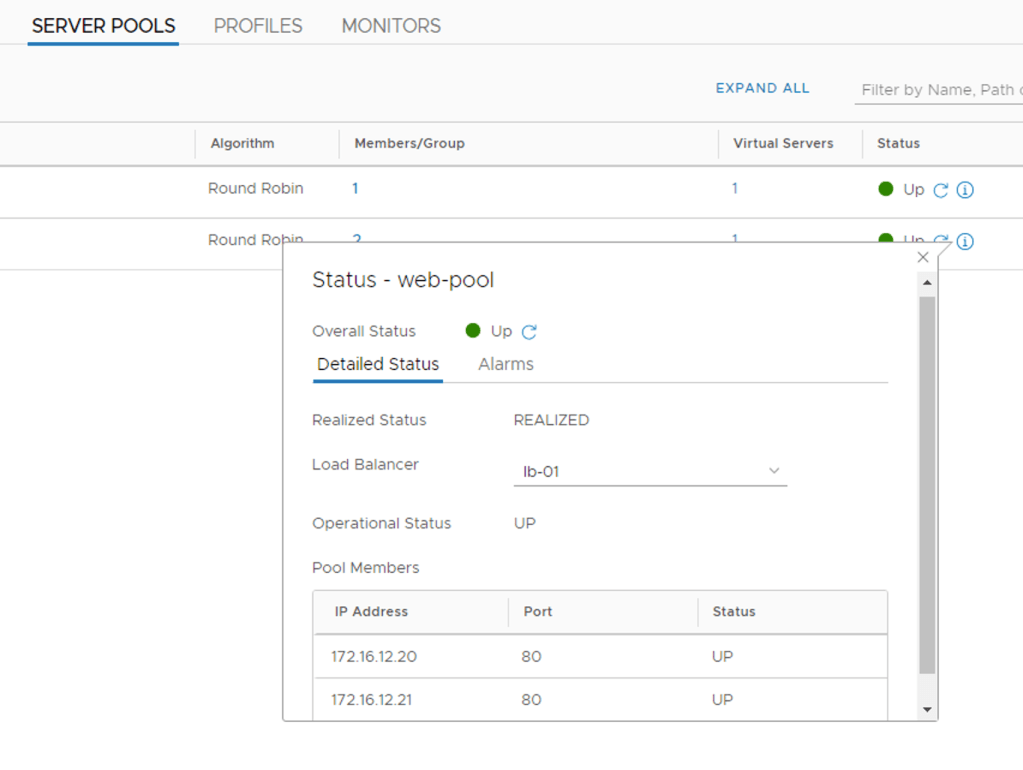
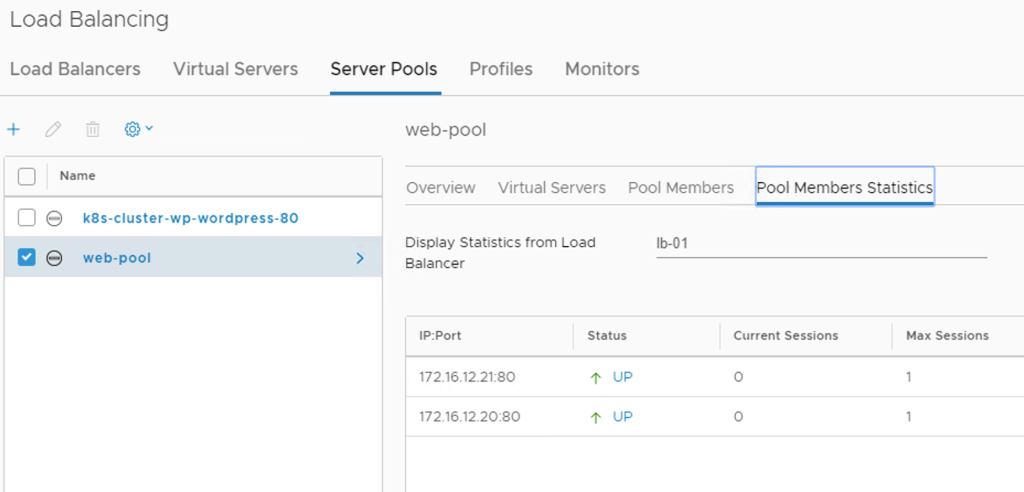
  • Recently somebody asked me if it was possible to see the current status for individual NSX-T load balancer server pool members. This information is indeed available in the NSX Manager simplified UI as you can see below:

    The same info can be found under Advanced Networking & Security:

    It’s nice that we can find this info in the NSX Manager UI, but it got me thinking that it would be even better if we could get notified on pool member status changes. After all, nobody has time to hang around in the NSX Manager UI all day long. It turns out that this is pretty easy to accomplish.

    Log Insight

    To make this happen I’m turning to one of my favorite tools namely vRealize Log Insight. No environment should be without it if you ask me. It’s a simple yet powerful tool which is why I like it so much. Receiving events, querying for events, and acting on query results. That’s about it most of the time.

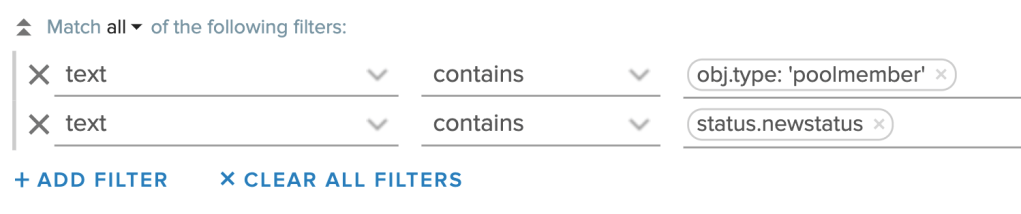
    So in the case of the load balancer server pool member status I create a Log Insight query that is looking for events containing the text obj.type: ‘poolmember’ and status.newstatus:

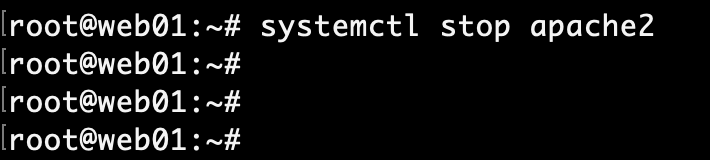
    Seconds after I shut down one of the web servers in my load balancer server pool, the query above shows me following result:

    Each of the NSX Edge nodes involved with the load balancer instance (i.e. the Edge nodes hosting the Tier-1 gateway constructs) generates the same event which is why we receive two identical events.

    The event itself contains a lot of relevant information. A quick look at the key pieces of information in this event:

    • Obj.Ip: ‘172.16.12.20’ – The IP address of the pool member.
    • Obj.Port: ’80’ – The configured port for the pool member.
    • Pool.Name: ‘web-pool’ – The server pool name.
    • Lb.Name: ‘lb-01’ – The load balancer instance name.
    • Vs.Name: ‘web-01’ – The name assigned to the pool member.
    • Status.NewStatus: ‘Down’ – The new/current status of the pool member.
    • Status.Msg: ‘Connect to Peer Failure’ – The reason for the status change.

    A very similar event will be generated once I start the web server again:

    This time the event contains:

    • Status.NewStatus: ‘UP’
    • Status.Msg: ‘pool member is up’

    Alerting

    Log Insight can send alerts based on query results.

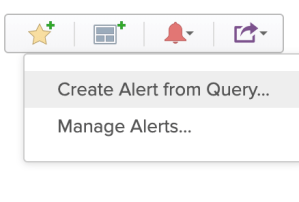
    Alerts can be send using email or made available via a webhook for third party integrations (like with Slack). Here I’m configuring an email alert for my pool member status change query:

    I’m triggering the event once more by shutting down the web server:

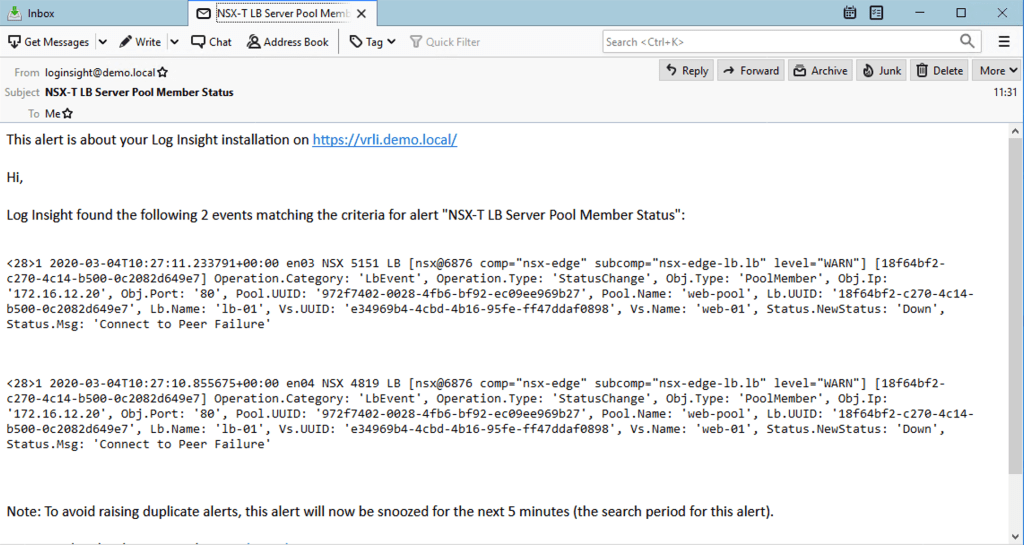
    I’ve got mail!

    From now on I will receive an email alert each time the status of a pool member changes. Simple and easy.

    Summary

    Although most organizations have systems in place for service availability monitoring and alerting, it can’t hurt to have an extra little eye watching things from the NSX-T perspective. Especially when it’s this easy to set up.

    A final note. To set up event forwarding from NSX-T to Log Insight you should have a look at the NSX-T content pack. Installing this content pack extends Log Insight with dashboards and queries especially for NSX-T. It also provides detailed instructions on how to configure event forwarding on the different NSX-T platform components.

  • Terraform Support For NSX-T Policy API

    The next release of Terraform’s NSX-T provider will add support for the NSX-T policy API. I know many people (including myself) have been waiting for this so it’s kind of a big thing within that space.

    While the new NSX-T provider is not released yet (it’s still being tested), the source code is available on GitHub and can be compiled by anybody that wants to play around with the new functionality.

    In today’s article I’ll do a quick demonstration of how to build a piece of NSX-T infrastructure using the new Terraform NSX-T provider leveraging the policy API.

    Diagram

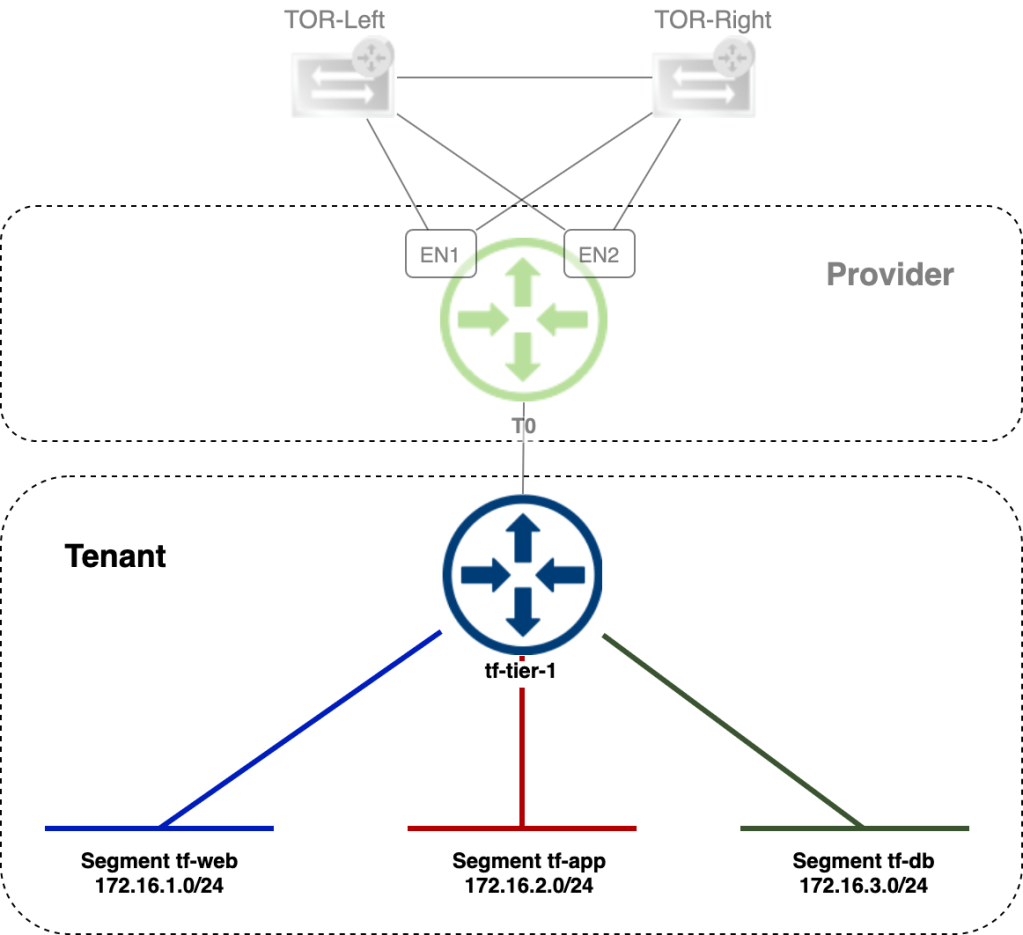
    The diagram below shows the NSX-T infrastructure we’re going to deploy:

    To keep things simple we will focus on building the NSX-T infrastructure for the tenant: A Tier-1 gateway and three connected segments.
    The “Provider” infrastructure is already in place. Let’s get started!

    Terraform files

    The following files are used for this deployment:

    \❯ tree 
    ├── main.tf 
    ├── terraform.tfvars
    ├── variables.tf
    

    I’ve uploaded them to GitHub in case you want to have a look.

    • main.tf – contains the instructions that will build the NSX-T infrastructure
    • terraform.tfvars – contains the values for variables used
    • variables.tf – contains the variable definitions

    Let’s have a quick look at some of the content in main.tf.

    The Tier-1 gateway resource is defined like this:

    #
    # Create Tier-1 Gateway
    #
    resource "nsxt_policy_tier1_gateway" "tier1-01" {
      description     = "Tier-1 gateway created by Terraform"
      display_name    = "tf-tier-1"
      edge_cluster_path = data.nsxt_policy_edge_cluster.edge_cluster-01.path
      tier0_path      = data.nsxt_policy_tier0_gateway.tier0_gateway.path
      enable_standby_relocation = "false"
      enable_firewall = false
      failover_mode   = "NON_PREEMPTIVE"
      route_advertisement_types = [
        "TIER1_LB_VIP",
        "TIER1_NAT",
        "TIER1_CONNECTED",
        "TIER1_STATIC_ROUTES"]
    #
    #
    

    As you can see we define the resource as “nsxt_policy_tier1_gateway”. This instructs Terraform’s NSX-T provider that the object is to be created/managed using the NSX-T policy API.

    The same goes for segments which are defined as “nsxt_policy_segment”:

    #
    # Create segment web
    #
    resource "nsxt_policy_segment" "segment1" {
      description       = "Web segment"
      display_name      = "tf-web"
      transport_zone_path = data.nsxt_policy_transport_zone.overlay_tz.path
      connectivity_path = nsxt_policy_tier1_gateway.tier1-01.path
      subnet {
        cidr    = "172.16.1.1/24"
        }
      tag {
        scope = var.nsx_tag_scope
        tag   = var.nsx_tag
      }
      tag {
        scope = "tier"
        tag   = "web"
      }
    }
    #
    #
    

    Terraform plan

    Time to run a “terraform plan” which does a sanity check of our code and generates an execution plan:

    terraform plan

    According to the execution plan four new objects will be added which seems to be correct (one Tier-1 and three segments).

    Terraform apply

    With an execution plan in place we can continue with applying it. This effectively creates the NSX-T infrastructure as defined in main.tf:

    terraform apply

    No issues here. Terraform tells us that the 4 resources have been added.

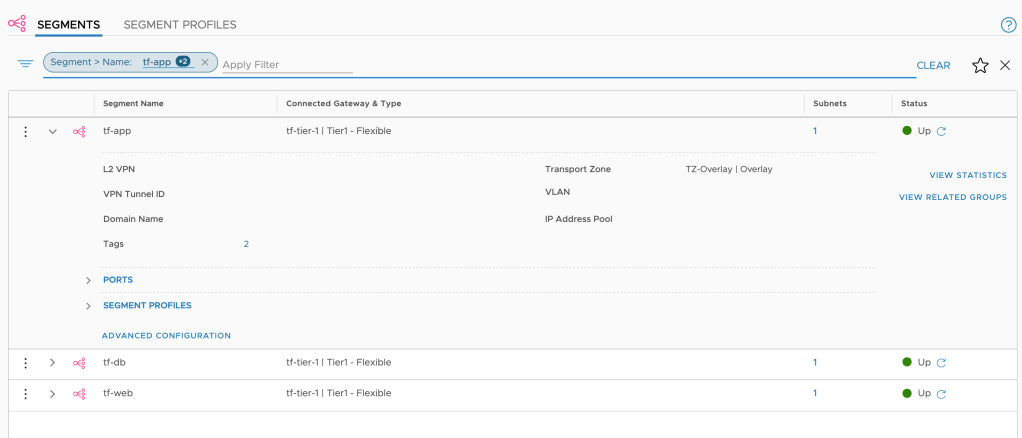
    Verify

    See is believe so let’s have a look in NSX Manager’s simplified UI:

    The Tier-1 gateway is indeed there. Connected to the Tier-0 and all.

    And there are the three segments connected to the Tier-1 with subnets defined. It seems that Terraform was successful in deploying our small tenant infrastructure.

    Summary

    This looks promising. I’ve always liked Terraform and now that it (soon officially) supports the NSX-T policy API it might very well become my go-to tool for managing NSX-T infrastructure.

    Thanks for reading.

  • Packet Capture On Tier-0 Uplinks

    With NSX-T logical networking the Tier-0 uplinks become the central passage for all of the North-South traffic—i.e., traffic between the NSX-T logical networks and the physical network.

    A critical point in the NSX-T data plane and one that we might want to place under a magnifying glass from time to time.

    In this short article I’ll walk through setting up and managing packet captures on Tier-0 uplinks.

    1 – Identify active SR location

    This step is relevant when the Tier-0 gateway is running in Active-Passive HA mode. Most of the time the interesting packets will be on the active uplinks and we need to figure out where these are situated.

    With Active-Active HA mode all of the Tier-0 uplinks are involved in forwarding traffic and therefore points of interest when it comes to capturing packets

    In the NSX Manager UI, navigate to Advanced Networking & Security > Networking > Routers. Click the Active-Standby link for the Tier-0 gateway:

    Here the active Tier-0 SR is located on edgevm01.

    2 – Identify interface ID

    Also under Advanced Networking & Security > Networking > Routers we click the name link of the Tier-0 gateway. This opens up the details pane where we choose Configuration > Router Ports:

    Copy the ID of the uplink interfaces that use the Edge node with the active Tier-0 SR:

    3 – Start capture session

    SSH into the Edge node with the active Tier-0 SR. To capture 50 outgoing/northbound packets run the following command:

    start capture interface <ID> direction output count 50 file capture.pcap

    For example:

    4 – Copy capture file

    The resulting capture.pcap file can now be copied to an SFTP server. For example:

    copy file capture.pcap url scp://root@sftp.demo.local/captures 

    After a successful copy you might want to delete the capture.pcap file from the Edge node’s file store:

    del file capture.pcap

    5 – Open capture file

    Open the capture file in a packet analyzer like Wireshark to start investigating the captured packets:

    Summary

    And that’s how easy it is to capture traffic on Tier-0 uplinks.

    It’s not uncommon that you need to capture network traffic as part of investigating some kind of application issue. For that reason I recommend that you document the IDs of the Tier-0 uplink interfaces in advance and have an SFTP server ready to go so that you don’t have to waste valuable time on preparing the packet capture itself.

    Thanks for reading.
  • NSX-T Meets FRRouting – Part 2

    Welcome back! We’re in the process of building an NSX-T Edge – FRRouting environment.

    In part 1 we prepared the FRR routers by doing he following:

    • Installed two Debian Linux servers
      • Installed VLAN support
      • Enabled packet forwarding
      • Configured network interfaces
    • Installed and configured VRRP
    • Installed FRRouting

    In this second part we will first deploy the NSX-T Edge components and then set up BGP routing. There’s a lot to do so let’s get started!

    Target topology

    As a refresher here is the big picture once more:

    We’ll use this diagram as our blueprint. Scroll back up here any time you wonder what the heck it is we’re doing down there.

    Deploy NSX-T Edge

    Let’s begin by getting the NSX-T Edge on par with the FRR routers.

    Create NSX-T segments

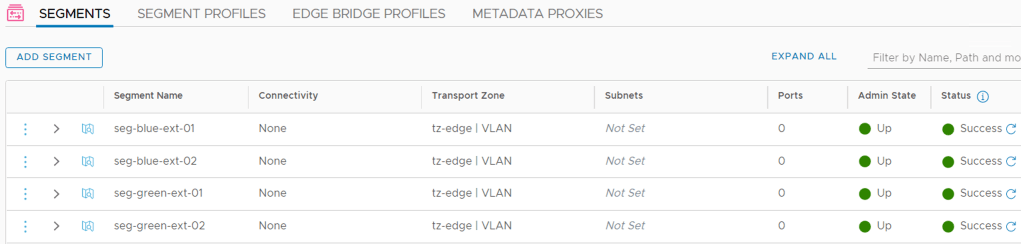
    The FRR routers, frr-01 and frr-02, were configured with local “peering” VLANs 1657 and 1658 respectively. Corresponding VLAN-backed segments are needed for L2 adjacency with the FRR routers.

    Creating the “vlan-1658” segment:

    Both segments in place:

    Uplink profile

    Create an uplink profile for the edge transport nodes containing settings for teamings, transport VLAN, and MTU:

    The transport VLAN has id 1659 and MTU size is 9000.

    Deploy Edge VMs

    Instead of walking through the Edge node deployment, the table below summarizes the settings I used during the deployment. Have a look at the Single N-VDS per Edge VM article for a detailed Edge node deployment walkthrough.

    SettingEdge Node 1Edge Node 2
    Nameen01en02
    FQDNen01.lab.localen02.lab.local
    Form FactorSmallSmall
    Mgmt IP172.16.11.61/24172.16.11.62/24
    Mgmt InterfacePG-MGMT (VDS)PG-MGMT (VDS)
    Default Gateway172.16.11.1172.16.11.1
    Transport ZoneTZ-VLAN, TZ-OVERLAYTZ-VLAN, TZ-OVERLAY
    Static IP List172.16.59.71, 172.16.59.81172.16.59.72, 172.16.59.82
    Gateway172.16.59.1172.16.59.1
    Mask255.255.255.0255.255.255.0
    DPDK InterdaceUplink1 > Trunk1 (VDS)
    Uplink2 > Trunk2 (VDS)
    Uplink1 > Trunk1 (VDS)
    Uplink2 > Trunk2 (VDS)

    The two Edge nodes are up and running:

    We add both Edge nodes to an Edge cluster:

    Create Tier-0 gateway

    With the Edge nodes in place we can create a Tier-0 gateway. I’m configuring it with Active-Standby HA Mode:

    We add four external interfaces to the Tier-0:

    NameIP addressSegmentEdge Node
    en1-uplink1172.16.57.2/29vlan-1657en1
    en1-uplink2172.16.58.2/29vlan-1658en1
    en2-uplink1172.16.57.3/29vlan-1657en2
    en2-uplink2172.16.58.3/29vlan-1658en2

    The four Tier-0 interfaces are in place:

    Test connectivity

    Now is a good time to verify the L2 adjacency between the FRR routers and the Tier-0 interfaces.

    A ping from frr-01 to the Tier-0 interfaces in VLAN 1657:

    And a ping from frr-02 to the Tier-0 interfaces in VLAN 1658:

    Successful pings. We’re good!

    Configure BGP

    Moving up an OSI layer, we continue with setting up BGP.

    Tier-0 gateway

    The Tier-0 is configured with the following BGP settings:

    SettingValue
    Local AS65000
    BGPOn
    Graceful RestartDisable
    ECMPOn

    The settings in NSX Manager:

    We add two BGP neighbors to the Tier-0: 172.16.57.1 (frr-01) and 172.16.58.1 (frr-02). Make sure to enable BFD for these neighbors too:

    The neighbor status will be “Down” at this point which is expected as we didn’t configure BGP on the FRR routers yet.

    For route re-distribution I choose to re-distribute from all the available sources into the BGP process:

    FRR routers

    Configuration of BGP in FRRouting can be done by editing configuration files directly or through VTY shell which is FRRouting’s CLI frontend. We’ll use VTY shell today.

    frr-01

    Run the vtysh command to start VTY shell:

    After changing to the configuration mode with conf t, we enable the BGP process with:

    router bgp 65001

    Next, we configure the router ID and the BGP/BFD neighbors which are the Tier-0’s interfaces in VLAN 1657 on frr-01:

    bgp router-id 172.16.57.1
    neighbor 172.16.57.2 remote-as 65000
    neighbor 172.16.57.2 bfd
    neighbor 172.16.57.3 remote-as 65000
    neighbor 172.16.57.3 bfd

    We want frr-01 to advertise itself as the default gateway to its BGP neighbors which is accomplished with:

    address-family ipv4 unicast
    neighbor 172.16.57.2 default-originate
    neighbor 172.16.57.3 default-originate

    Run end followed by wr to save the configuration:

    If all went well we should now see active BGP and BFD sessions between frr-01 and the Tier-0 interfaces in VLAN 1657. Let’s verify this with:

    show bgp summary

    BGP neighbor sessions are looking good. How about BFD?

    show bfd peers

    BFD sessions are up.

    frr-02

    We repeat the exact same configuration steps on frr-02. The configuration for frr-02 looks like this:

    router bgp 65001
    bgp router-id 172.16.58.1
    neighbor 172.16.58.2 remote-as 65000
    neighbor 172.16.58.2 bfd
    neighbor 172.16.58.3 remote-as 65000
    neighbor 172.16.58.3 bfd
    !
    address-family ipv4 unicast
    neighbor 172.16.58.2 default-originate
    neighbor 172.16.58.3 default-originate
    exit-address-family

    Let’s check the BGP/BFD status at frr-02:

    show bgp summary
    show bfd peers

    BGP and BFD sessions are looking good.

    Routing

    After a lot of deploying and configuring it’s finally time to see if we can actually route any traffic.

    FRR routing tables

    We begin by having a look at the FRR routing tables. Run the following command in VTY shell on the FRR routers:

    show ip route bgp

    frr-01:

    frr-02:

    The FRR routers have learned about each other’s /29 subnets via the NSX-T Tier-0. More specifically, they were learned from neighbor 172.16.57.2 and 172.16.58.2. This tells us that the active Tier-0 SR is hosted on Edge node 1.

    Is the standby Tier-0 SR completely out of the picture then? Let’s see:

    show bgp detail

    The standby Tier-0 SR on Edge node 2 also advertises routes for the same /29 subnets, but as you can see the ASN (65000) is added to the path three more times and packets won’t be routed over these longer paths.

    Tier-0 routing table

    Run the following command on the Edge node hosting the active Tier-0 SR:

    get route bgp

    Here we see two equal cost routes for 0.0.0.0/0, one to each FRR router. This tells us that “default-originate” did its job. Both routes also ended up in the FIB which means ECMP is working.
    From overlay to physical

    It’s now time for the ultimate test. We create an overlay segment, 192.168.10.0/24, connected to the Tier-0 gateway:

    The BGP process on the Tier-0 advertises the 192.168.10.0/24 network to its neighbors. Let’s check if they ended up there:

    show ip route bgp

    frr-01:

    frr-02:

    A route to the overlay network is indeed present in both of the FRR routers routing table.

    Now we connect a VM to the overlay segment and run a traceroute from this VM to an IP address north of the FRR routers:

    traceroute 10.2.129.10 -n -q 2

    The VM on the overlay segment can reach the physical network. By doing two probes per hop we also see that the Tier-0 offers two paths to the destination: one via frr-01 (172.16.57.1) and one via frr-02 (172.16.58.1).

    It’s a wrap

    It’s been quite a project, but we got ourselves a working NSX-T Edge – FRRouting environment and it wasn’t that hard to set up, right?

    This all started with me looking for a more enterprise like virtual top-of-rack solution for my NSX-T lab. Having these FRR routers north of the Tier-0 certainly feels like a big step towards that goal. Perhaps not fully showcased in these articles, but FRRouting’s feature set is pretty much on par with today’s data center leaf-spine switches. As a matter of fact it’s already being used there. Have a look at Cumulus Networks for example.

    For more information about features and possibilities surrounding BGP have a look at the official NSX-T and FRRouting documentation. Most of all I recommend that you set this up yourself. Hopefully these two articles will help you get started with that.

    Thanks for reading!

  • NSX-T Meets FRRouting – Part 1

    Until recently I always used pfSense with the OpenBGPD package as the NSX-T Edge counterpart in my lab environment. It’s quick and easy to set up and works well enough. But pfSense is not what I typically find in a customer’s production environment.

    I started to investigate other virtualized “top-of-rack solutions” for the lab that would be a bit more similar to what I see in the enterprise. Right now I’m testing out FRRouting and I must say that I’m pretty impressed with this solution so far. At least it’s good enough to be the subject of a blog post or two 😉

    I’m going to walk through deploying and configuring a pair of FRRouting instances, the NSX-T Edge, and BGP routing in a lab environment. Follow along if you want.

    Target topology

    The diagram below shows a logical L3 design for the NSX-T Edge – FRRouting solution that we’ll be building:

    There’s nothing much out of the ordinary here. We have a Tier-0 gateway backed by two Edge nodes, and BGP routing. At the top of the diagram things look a bit less familiar with two Linux routers powered by FRRouting.
    That’s a nice sketch. Now let’s see if we can make it work too.

    Bill of materials

    The following software is used to build this environment:

    • NSX-T 2.5.1
    • vSphere 6.7 U3
    • Debian Linux 10.2
    • FRRouting 7.2

    Deploy FRRouting

    This first part is about getting the FRR instances up and running which begins with installing two Linux servers. Let’s get right to it.

    Install Linux servers

    Debian Linux is a good fit here as there is an official FRR Debian repository which makes installing FRR a lot easier.

    Each server is configured with two NICs.

    The ens192 interface is configured as the primary interface and will be the “north-facing” port. The ens224 interface is the “SDDC-facing” port.

    At this point we only assign a static IP address to the ens192 interface.

    The only additional components we need to install are the SSH server and standard system utilities:

    Complete the Debian installation on both servers.

    Install VLAN support

    The servers will soon be configured with some VLAN interfaces. To add support for this we install the VLAN package:

    apt install vlan -y

    Add the following line to /etc/modules so that VLAN (802.1Q) support is loaded during boot:

    8021q

    Enable IPv4 packet forwarding

    We want the Linux servers to become Linux routers and as a part of that we need to enable IPv4 packet forwarding in /etc/sysctl.conf:

    net.ipv4.ip_forward=1

    Reboot the servers after making this change.

    Configure network interfaces

    Time to configure the network interfaces on the Linux routers. The following shows the interface configuration per Linux router:

    frr-01:

    InterfaceIP addressComment
    ens19210.2.129.101/24Primary interface, north-facing
    ens224Secondary interface, SDDC-facing
    ens224.1611172.16.11.253/24Management VLAN
    ens224.1657172.16.57.1/29BGP peering VLAN
    ens224.1659172.16.59.253/24Overlay transport VLAN

    Which results in the following /etc/network/interfaces for frr-01:

    source /etc/network/interfaces.d/*
    
    # The loopback network interface
    auto lo
    iface lo inet loopback
    
    # The primary network interface - north-facing port
    auto ens192
    allow-hotplug ens192
    iface ens192 inet static
    address 10.2.129.101/24
    gateway 10.2.129.1
    dns-nameservers 10.2.129.10
    dns-search demo.local
    
    # The secondary network interface - SDDC-facing port
    auto ens224
    allow-hotplug ens224
    iface ens224 inet manual
    mtu 9000
    
    # The VLAN 1611 interface - Management
    auto ens224.1611
    iface ens224.1611 inet static
    address 172.16.11.253/24
    
    # The VLAN 1657 interface - BGP peering
    auto ens224.1657
    iface ens224.1657 inet static
    address 172.16.57.1/29
    
    # The VLAN 1659 interface - Overlay transport
    auto ens224.1659
    iface ens224.1659 inet static
    address 172.16.59.253/24

    frr-02:

    InterfaceIP addressComment
    ens19210.2.129.102/24Primary interface, north-facing
    ens224Secondary interface, SDDC-facing
    ens224.1611172.16.11.254/24Management VLAN
    ens224.1658172.16.58.1/29BGP peering VLAN
    ens224.1659172.16.59.254/24Overlay transport VLAN

    The corresponding /etc/network/interfaces for frr-02:

    source /etc/network/interfaces.d/*
    
    # The loopback network interface
    auto lo
    iface lo inet loopback
    
    # The primary network interface - north-facing
    auto ens192
    allow-hotplug ens192
    iface ens192 inet static
    address 10.2.129.102/24
    gateway 10.2.129.1
    dns-nameservers 10.2.129.10
    dns-search demo.local
    
    # The secondary network interface - SDDC-facing
    auto ens224
    allow-hotplug ens224
    iface ens224 inet manual
    mtu 9000
    
    # The VLAN 1611 interface - Management
    auto ens224.1611
    iface ens224.1611 inet static
    address 172.16.11.254/24
    
    # The VLAN 1658 interface - BGP peering
    auto ens224.1658
    iface ens224.1658 inet static
    address 172.16.58.1/29
    
    # The VLAN 1659 interface - Overlay transport
    auto ens224.1659
    iface ens224.1659 inet static
    address 172.16.59.254/24

    Restart the network to activate the new network interface configuration:

    systemctl restart networking

    Run the ip address command to verify that the new interface configuration is active:

    Install VRRP

    As you noticed we are “stretching” the management VLAN (1611) and the overlay transport VLAN (1659) between the Linux routers. Both routers can act as the default gateway for these VLANs at any given time. To make use of this capability we’ll set up VRRP with Keepalived.

    Install the package:

    apt install keepalived -y

    Create the Keepalived configuration file: /etc/keepalived/keepalived.conf. Below the Keepalived configuration per server:

    frr-01 (VRRP master):

    global_defs {
    # Email Alert Configuration
    notification_email {
    # Email To Address
    admin@demo.local
    }
    # Email From Address
    notification_email_from noreply@demo.local
    # SMTP Server Address / IP
    smtp_server 127.0.0.1
    # SMTP Timeout Configuration
    smtp_connect_timeout 60
    router_id frr-01
    }
    
    vrrp_sync_group VG1 {
    group {
    1611
    1659
    }
    }
    
    vrrp_instance 1611 {
    # State = Master or Backup
    state MASTER
    # Interface ID for VRRP to run on
    interface ens224.1611
    # VRRP Router ID
    virtual_router_id 10
    # Highest Priority Wins
    priority 250
    # VRRP Advert Intaval 1 Second
    advert_int 1
    # Basic Inter Router VRRP Authentication
    authentication {
    auth_type PASS
    auth_pass VMware1!VMware1!
    }
    # VRRP Virtual IP Address Config
    virtual_ipaddress {
    172.16.11.1/24 dev ens224.1611
    }
    }
    
    vrrp_instance 1659 {
    # State = Master or Backup
    state MASTER
    # Interface ID for VRRP to run on
    interface ens224.1659
    # VRRP Router ID
    virtual_router_id 11
    # Highest Priority Wins
    priority 250
    # VRRP Advert Intaval 1 Second
    advert_int 1
    # Basic Inter Router VRRP Authentication
    authentication {
    auth_type PASS
    auth_pass VMware1!VMware1!
    }
    # VRRP Virtual IP Address Config
    virtual_ipaddress {
    172.16.59.1/24 dev ens224.1659
    }
    }

    frr-02 (VRRP backup):

    global_defs {
    # Email Alert Configuration
    notification_email {
    # Email To Address
    admin@demo.local
    }
    # Email From Address
    notification_email_from noreply@demo.local
    # SMTP Server Address / IP
    smtp_server 127.0.0.1
    # SMTP Timeout Configuration
    smtp_connect_timeout 60
    router_id frr-02
    }
    
    vrrp_sync_group VG1 {
    group {
    1611
    1659
    }
    }
    
    vrrp_instance 1611 {
    # State = Master or Backup
    state BACKUP
    # Interface ID for VRRP to run on
    interface ens224.1611
    # VRRP Router ID
    virtual_router_id 10
    # Highest Priority Wins
    priority 150
    # VRRP Advert Intaval 1 Second
    advert_int 1
    # Basic Inter Router VRRP Authentication
    authentication {
    auth_type PASS
    auth_pass VMware1!VMware1!
    }
    # VRRP Virtual IP Address Config
    virtual_ipaddress {
    172.16.11.1/24 dev ens224.1611
    }
    }
    
    vrrp_instance 1659 {
    # State = Master or Backup
    state BACKUP
    # Interface ID for VRRP to run on
    interface ens224.1659
    # VRRP Router ID
    virtual_router_id 11
    # Highest Priority Wins
    priority 150
    # VRRP Advert Intaval 1 Second
    advert_int 1
    # Basic Inter Router VRRP Authentication
    authentication {
    auth_type PASS
    auth_pass VMware1!VMware1!
    }
    # VRRP Virtual IP Address Config
    virtual_ipaddress {
    172.16.59.1/24 dev ens224.1659
    }
    }

    Restart the Keepalived service on both routers to activate the new configuration:

    systemctl restart keepalived

    We can now verify VRRP operation by running systemctl status keepalived:

    Running the ip address command will hopefully show the virtual IP address on the two VLAN interfaces:

    And a ping to the virtual IP address from the VRRP backup node (frr-02 in this case) should be successful:

    Install FRRouting

    With Linux installed and configured we continue with the FRRouting installation.

    Begin by adding the FRR Debian repository:

    curl -s https://deb.frrouting.org/frr/keys.asc | apt-key add -
    FRRVER="frr-stable"
    echo deb https://deb.frrouting.org/frr $(lsb_release -s -c) $FRRVER | tee -a /etc/apt/sources.list.d/frr.list
    apt update && apt install frr frr-pythontools -y

    FRRouting is now installed.

    Configure FRRouting capabilities

    We only enable the routing protocols that are needed. To make FRR a good match for the NSX-T Edge we would like the instances to be capable of doing BGP and BFD. So we simply enable these daemons in /etc/frr/daemons.

    bgpd=yes
    bfdd=yes

    Restart the FRR service and verify that the BGP and BFD daemons are active:

    systemctl restart frr
    systemctl status frr

    This is looking good. The FRR instances are now ready for control plane configuration.

    Summary

    This completes part 1 of the series on NSX-T and FRRouting. We’ve been quite productive:
    • Installed two Debian Linux servers
      • Installed VLAN support
      • Enabled packet forwarding
      • Configured network interfaces
    • Installed and configured VRRP
    • Installed FRRouting

    In the next part we’ll continue with deploying the NSX-T Edge and setting up BGP routing between NSX-T and the FRR instances. Thanks for reading and stay tuned!

  • Site-to-Site VPN Between NSX-T Tier-1 And AWS VPC

    Now that I started studying for the AWS Certified Advanced Networking – Specialty I have to learn pretty much everything about AWS networking. Naturally VPN is a part of that.
    When it comes to AWS VPN the most common use case is establishing secure Site-to-Site connections between the customer’s data center and a Virtual Private Cloud (VPC).

    As an exercise for myself I decided to configure a Site-to-Site VPN connection between an NSX-T Tier-1 gateway and an AWS VPC and in today’s article I’m walking through the process of setting this up.

    Target topology

    Let’s begin with a simple diagram showing the logical environment and the scenario that I cooked up for myself:

    A database server (db01) in the data center needs to regularly dump its database to an EC2 instance (db-backups). The database server is connected to a segment which is attached to a Tier-1 gateway. The EC2 instance is connected to a private subnet in a Virtual Private Cloud (VPC).

    The requirement is that only “segment-db” in the data center should be allowed to access the VPC private subnet using an encrypted connection over the Internet.

    This sounds like a reasonable realistic scenario at least, right? Let’s set this up.

    Configuring AWS

    I begin by configuring the AWS side using the AWS Management Console.

    Virtual Private Gateway

    First of all I need a Virtual Private Gateway (VGW) and attach it to my VPC. This is a matter of some clicks and requires minimal configuration:

    Customer Gateway

    Next up is a Customer Gateway. This is a logical construct representing the VPN “device” on the data center side:

    I’m selecting static routing and enter the public IP address of the VPN endpoint on the data center side. This can be a NAT-ed IP address.

    VPN Connection

    The third and last component is a VPN Connection:

    Here I choose the newly created VGW and Customer Gateway. I also select static routing and add the 10.10.1.0/24 prefix which matches the “segment-db” subnet.

    At this point Site-to-Site VPN on the AWS side is configured and ready:

    Configuration file

    I download the vendor generic configuration file which contains all the settings for the VPN connection. This file might come in handy when configuring NSX-T:

    Route propagation

    One last thing before heading over to the data center is a small modification to the private subnet’s route table so that route propagation from the VGW is enabled. In my case this effectively adds a route for 10.10.1.0/24 with the VGW as target.

    Configuring NSX-T

    With the AWS side ready to rock n’ roll I will continue with the configuration of the NSX-T side.

    VPN Profiles

    I begin by creating profiles for IKE, IPSec, and DPD. This is done under Networking > Network Services > VPN > Profiles. The profiles contain settings that match the ones in the downloaded configuration file.

    For the IKE profile I use the following settings:

    SettingValue
    Nameaws-ike
    IKE versionIKE V1
    Encryption AlgorithmAES 128
    Digest AlgorithmSHA1
    Diffie-HellmanGroup 2
    SA Lifetime (sec)28800

    The IPSec profile looks like this:

    SettingValue
    Nameaws-ipsec
    Encryption AlgorithmAES 128
    Digest AlgorithmSHA1
    PFSEnabled
    Diffie-HellmanGroup 2
    SA Lifetime (sec)3600

    And finally the DPD profile:

    SettingValue
    Nameaws-dpd
    DPD Probe Interval (sec)10

    Note 1: I actually don’t have to create these profiles as the built-in “Foundation” (IKE and IPSec) and “nsx-default-l3vpn-dpd-profile” profiles work fine with AWS IPSec VPN, but I prefer having my own profiles.

    Note 2: The IKE/IPSec/DPD settings in my profiles are fine for my little lab exercise. In the real world you want to consider other, possibly more secure settings.

    VPN Service

    With the VPN profiles in place I move over to VPN Services and add a new IPSec service:

    Very little needs to be configured here. A name (nsx-aws), a description perhaps, but most importantly a gateway. Starting with NSX-T 2.5 IPSec VPN can be configured on a Tier-1 gateway which is exactly what I want to do here:

    IPSec Session

    The last piece of configuration that I need to add is a Policy Based IPSec session which is done under IPSec Sessions:

    The IPSec session is configured with the following settings:

    SettingValue
    Nameipsec-session-01
    VPN Servicensx-aws
    Local Endpointendpoint-01
    Remote IPpublic IP of the AWS VGW
    Authentication ModePSK
    Pre-shared KeyPSK is in the downloaded configuration file
    IKE Profilesaws-ike
    IPSec Profilesaws-ipsec
    DPD Profilesaws-dpd
    Local Networks10.10.1.0/24
    Remote Networks172.16.1.0/24
    Connection Initiation ModeInitiator

    Quite a few settings here but most of them are self explanatory.

    Local Endpoint

    Except for “Local Endpoint” perhaps, which I created while configuring the IPSec session.

    The local endpoint serves as the VPN tunnel’s endpoint on the NSX-T side. Its IP address is assigned to the loopback interface within the Tier-1 Service Router (SR) component. This IP address needs to be unique and reachable throughout the network meaning it needs to be advertised by the Tier-1 and then distributed by the Tier-0.

    On the Tier-1 gateway I make sure that “All IPSec Local Endpoints” is enabled under “Route Advertisement”:

    On the Tier-0 gateway I select “IPSec Local Endpoint” under “Advertised Tier-1 Subnets”:

    A quick peek at the physical router’s route table shows me there’s now a host route to the local endpoint (192.168.10.10/32):

    Verify VPN connection

    Now that the AWS and the NSX-T sides are configured, I should have a functional Site-to-Site VPN connection between the two environments. Let’s verify.

    The IPSec tunnel status is looking good in the NSX Manager UI:

    Some more details about IPSec sessions can be fetched on the Edge node CLI using the “get ipsecvpn” command. For example:

    get ipsecvpn session

    On the AWS side the tunnel status for the first tunnel has changed to “Up”:

    I seem to have an operational Site-to-Site VPN connection. Time for the ultimate test: Can “db01” connect to the EC2 instance?

    It can indeed. Mission accomplished!

    API

    For faster provisioning of the NSX-T VPN configuration I can use the API instead.

    Have a look at this piece of JSON code for some inspiration:

    This creates a Tier-1 with segment and IPSec VPN configuration. It can be send as the body of a PATCH request to the hierarchical policy API:

    PATCH https://<nsx-mgr>/policy/api/v1/infra

    If you want to give it a try, replace the values of the following keys so they match your environment:

    • tier0_path
    • transport_zone_path
    • edge_cluster_path
    • peer_address
    • peer_id
    • psk

    Besides this it should be pretty environment agnostic.

    Summary

    No issues configuring a Site-to-Site IPSec VPN here. For more information about VPN on these platforms see the AWS Site-to-Site VPN documentation and the NSX-T documentation.

    Thanks for reading.